
GlideX by ASUS creates a single workspace across Windows, macOS, Android, and iOS so your screens, input devices, and content work together. You can connect over WiFi or USB and keep everything local for privacy. It is built to move work, calls, and media between devices with minimal setup. Moreover, GlideX offers deeper optimization on ASUS hardware for smoother, lower latency performance. Therefore, you can pick up tasks on any screen and stay focused. And you can pair devices by QR code or the same ASUS account, which makes onboarding quick for both personal and shared machines.
Mirror or extend your display
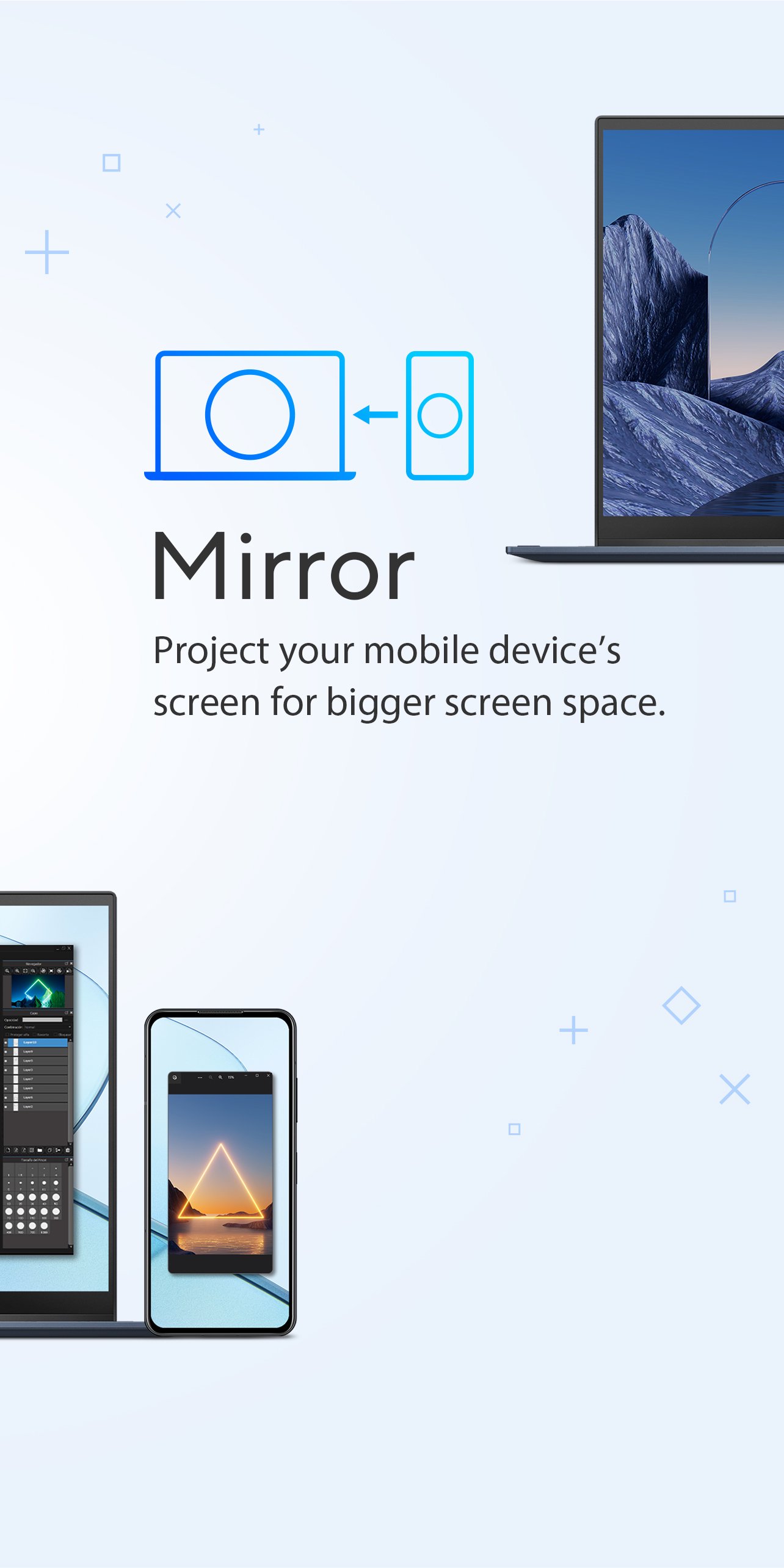
GlideX mirrors your phone to a PC or extends your PC display to a phone or tablet. This enables dual screen multitasking in places where you do not have an extra monitor. On select ASUS devices, you can run up to two concurrent display sessions for added space.
Unify keyboard and mouse across devices
You can use one keyboard and mouse to control multiple devices across different systems. GlideX lets you move the pointer across screens and interact without device switching. This reduces desk clutter and keeps your workflow consistent.
Local file transfer with simple drag and drop
GlideX supports drag and drop files between PCs and mobile devices over local WiFi or USB. Transfers on the same network have no limit, while devices on different networks share up to 1 GB per day. No cable. No cloud. Your files stay on your devices.
Calls and notifications on your PC
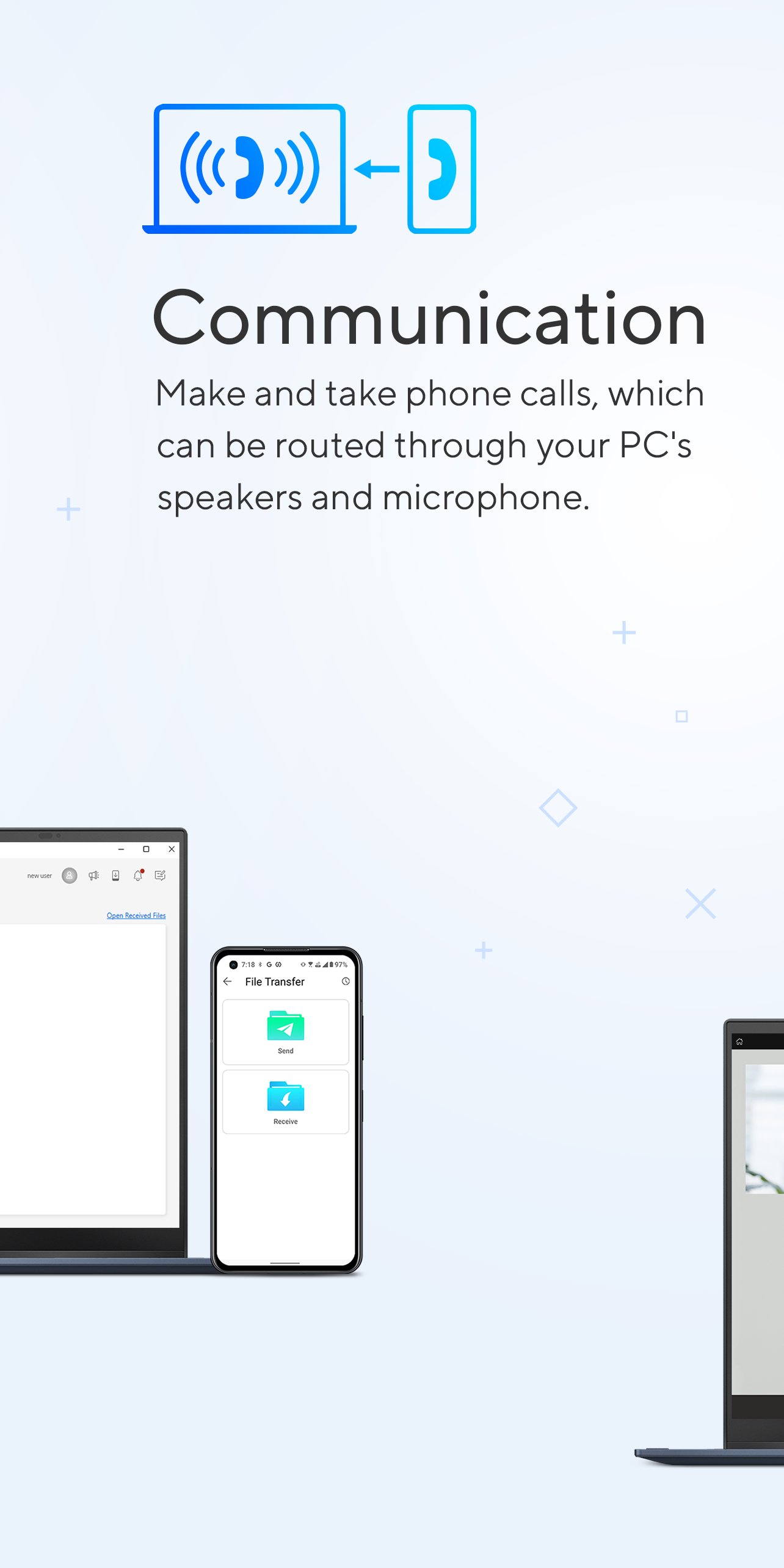
GlideX brings phone calls and notifications to your desktop, so you can respond without picking up your phone. You can view contacts and place calls with a click. This helps you manage communication while staying on your main screen.
Use your phone as a webcam
Shared Cam turns your phone into a high quality webcam for meetings and streaming. You can switch quickly from your laptop camera to your phone and adjust framing with your mobile screen. This is useful when you need better image quality.
Remote access and app streaming
GlideX lets you access your PC from your phone when you are away. In addition, supported apps can stream from compatible ASUS phones for quick checks or demos. This keeps key tools available even when you are not at your desk.
When GlideX runs on ASUS devices, you get deeper optimization for smoother visuals and lower latency. You can also enable richer tools such as Communication, Shared Cam, App Streaming, and Remote Access with more stability. In addition, select ASUS setups support two concurrent display sessions to expand your workspace further.
GlideX for macOS supports Extend from PC to PC and Unify Control from PC to PC. This means you can add a Mac as an extra display or share your keyboard and mouse between computers. Therefore, cross platform desks can operate more like a single system.
You can pair devices by scanning a QR code or by signing in with the same ASUS account. And you can connect over WiFi or USB to keep traffic local. Moreover, file transfers do not require cloud uploads, which helps protect sensitive content while you work.
Screen Mirror works on Android without the Accessibility permission. However, the Home, Back, and Recent buttons in the mirrored window require Accessibility to be enabled. Therefore, you can start quickly and add permissions only if you need those controls.
Set up takes only a few minutes, and you can start with any mix of PC and mobile. Follow these steps to connect and choose the tools you need.
GlideX brings your screens, input, files, and calls into one workspace. Get GlideX APK to connect devices and keep tasks moving with local, reliable links. Download GlideX APK latest version on APKPure to start today.
For official product details and desktop downloads, visit:
Is GlideX free?
GlideX is available to download for free on APKPure, and you can start with core features after pairing your devices. Feature availability can vary by device and platform, and ASUS hardware may offer deeper optimization for an improved experience.
Can I use ASUS GlideX on a non ASUS PC?
Yes, GlideX works on Windows and macOS devices from any brand. You can connect those computers with Android or iOS devices and use features such as Mirror, Extend, Unify Control, and file transfer, with ASUS devices offering added optimization.
Does ASUS GlideX work with Apple devices?
Yes, GlideX supports macOS, iPhone, and iPad as part of its cross platform design. On macOS, GlideX supports Extend from PC to PC and Unify Control from PC to PC, and other features operate based on the connected device capabilities.
How do I download and update GlideX on Android?
To download GlideX on Android, visit APKPure, tap Download, and install the GlideX APK. To update, return to the GlideX page on APKPure and get the GlideX APK latest version, then install to replace the older build while keeping your data.
Is the GlideX app safe to use for file transfers?
GlideX uses local WiFi or USB for transfers, and pairing works by QR code or ASUS account login, so files do not require cloud uploads. You can also download GlideX APK from APKPure for a secure package, then keep transfers on your own network.
Latest Version
4.3.0.0.2608.31Uploaded by
حمود الشملان
Requires Android
Android 9.0+
Category
Free Tools AppContent Rating
Everyone
Report
Flag as inappropriateLast updated on Sep 29, 2026
- UI improvements
- Bug fixes and stability enhancements






APKPure - A multi-platform app store primarily focused on Android, providing extensive app-related content. Discover the app you want easier, faster, and safer, with quick and efficient downloads and installations.