


How to Find Seeds in Valheim

2026-09-14
Learn how to find your Valheim seed with the console command, world files, and a seed viewer to check your seed code.
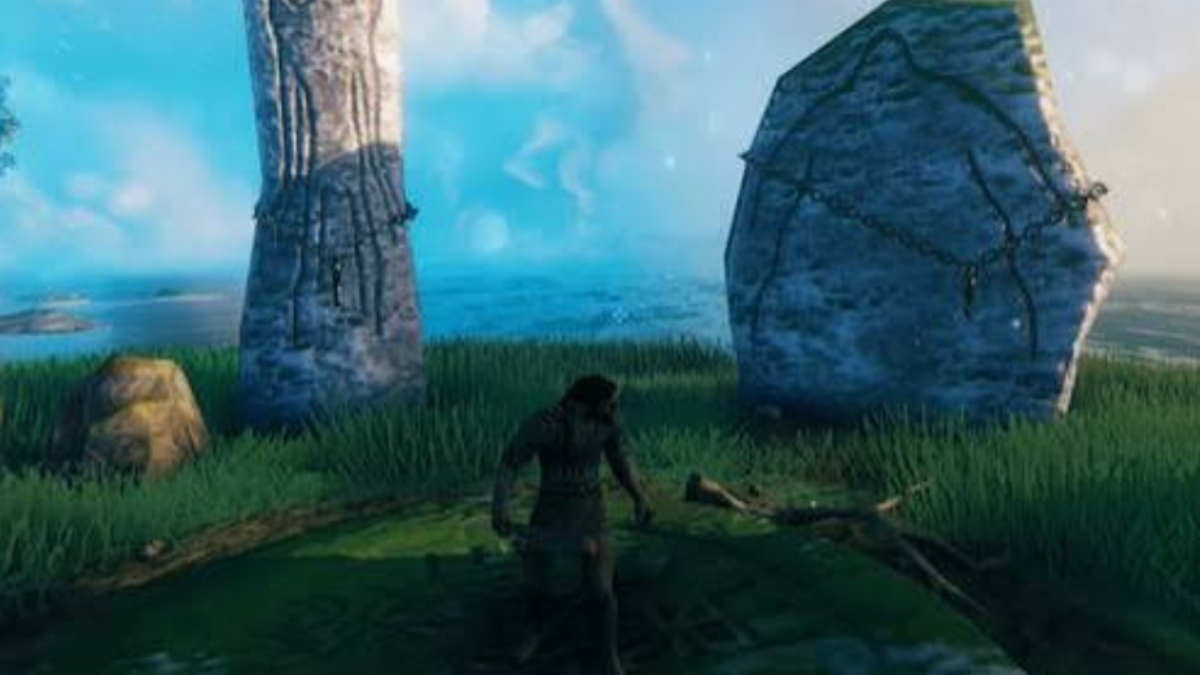
A Valheim seed is the code used to generate a world’s map. Finding it lets you share a map, recreate a world, set a fixed server layout, or preview locations with a seed viewer.
What Is a World Seed in Valheim?
A world seed initializes Valheim’s procedural world generator. When the same seed is used with the same game version, it generally produces the same biome layout, boss altars, trader locations, and resource areas.
The seed is fixed when the world is created. You cannot change it inside an existing world; to use a different seed, you must create a new world.

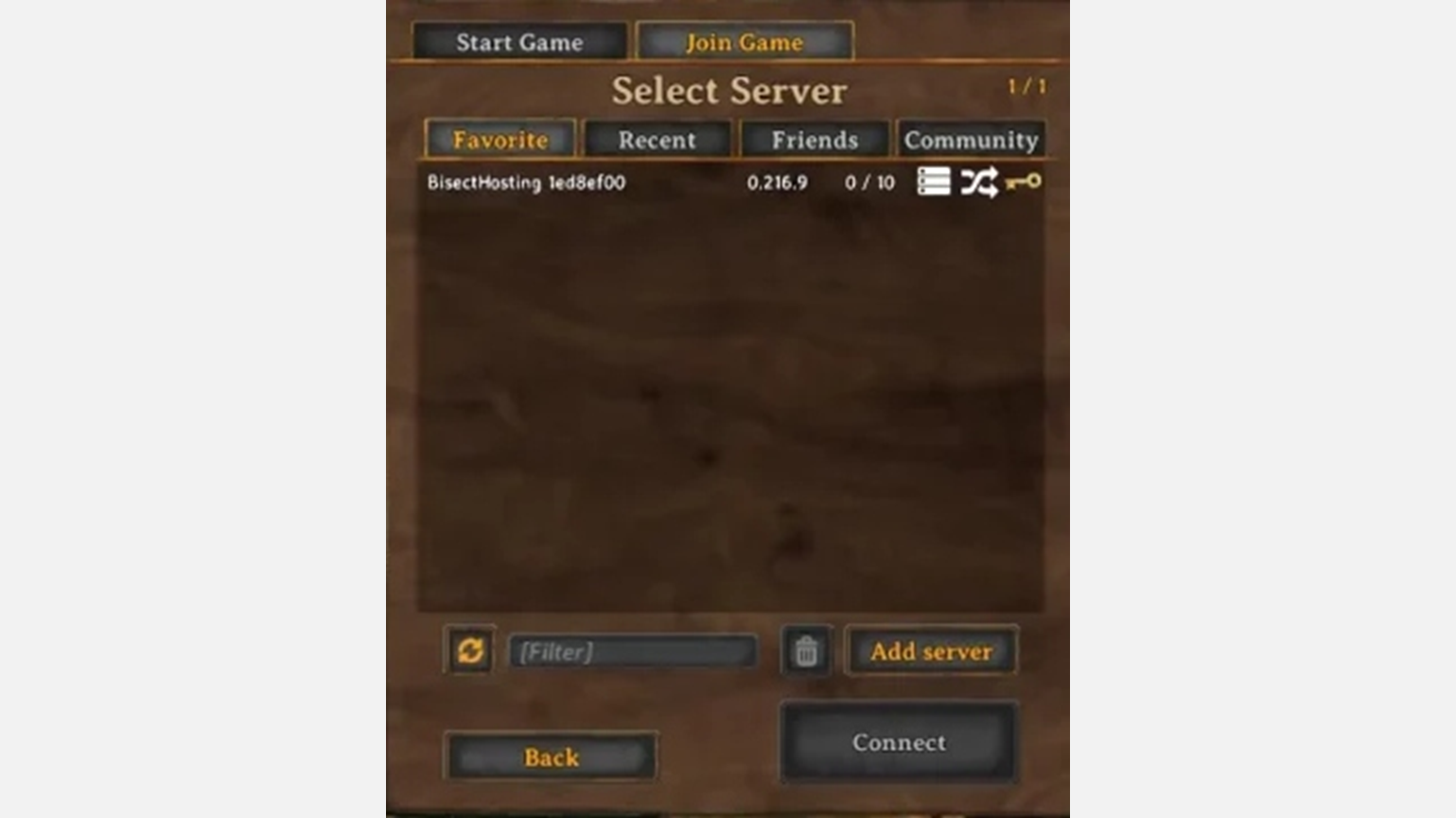
Method 1 — Check the Seed When Creating a World
1. Open the main menu.
2. Select Start Game.
3. Choose Create New.
4. Check the Seed field.
If the field is empty, Valheim will generate a random seed. To use a specific map, enter the seed before creating the world.
Tip: Copy or write down your preferred seed before clicking Start.
Method 2 — Use In-Game Console Commands
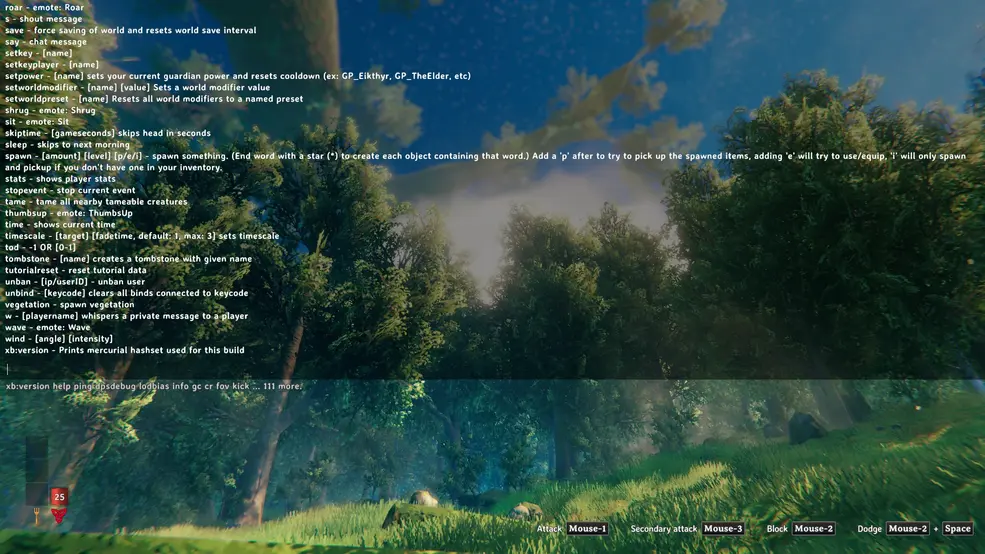
This method may require console access, and commands can vary by platform or game version. On PC, you may need to add -console to Valheim’s launch options first.
1. Enter your world or server.
2. Press F5 to open the console.
3. Enter printseed or printseeds.
4. Press Enter and read the seed shown in the console.
Some server setups may also support genloc, but this command is primarily related to generating locations and may not display the world seed in every version. Verify the command behavior on your current build.
Seeds are case-sensitive. Copy every letter and number exactly, without adding spaces before or after the code.
Method 3 — Extract the Seed from World Files
Every Valheim world stores seed information in a small save file. Depending on the game version and save system, the file may use the .fwl, .fwl.old, or .fwl2 format.
Windows Save Locations
Older local saves may be found at:
| %USERPROFILE%\AppData\LocalLow\IronGate\Valheim\worlds_local |
|---|
Steam Cloud saves may instead be stored under:
| C:\Program Files (x86)\Steam\userdata\ |
|---|
For newer save formats, open the folder matching your world name and look for the latest _main.N.fwl2 file. Do not upload the large database file when using an extractor.
1. Extract the Seed
2. Close or stop the game/server before copying save files.
3. Locate the file matching your world.
4. Select the .fwl or .fwl2 file.
5. Upload it to a compatible Valheim seed extractor.
6. Copy the displayed seed exactly.
For example, Valheim World Generator provides an extractor that accepts .fwl, .fwl.old, and .fwl2 files.
This method is useful when you forgot the seed, want to back up a world, or need to share an existing map.
Method 4 — Check a Dedicated Server Panel
Many hosting providers display the seed in a Basic, World, or World Seed setting.
To find it:
1. Open your hosting control panel.
2. Select the relevant Valheim server.
3. Check the world or basic settings.
4. Look for World Seed.
5. Stop the server before downloading or replacing world files.
When creating a new server, enter the desired seed before the world is generated. For server file access, world saves are commonly stored in a worlds_local directory.
How to Use a Seed to Generate a New World
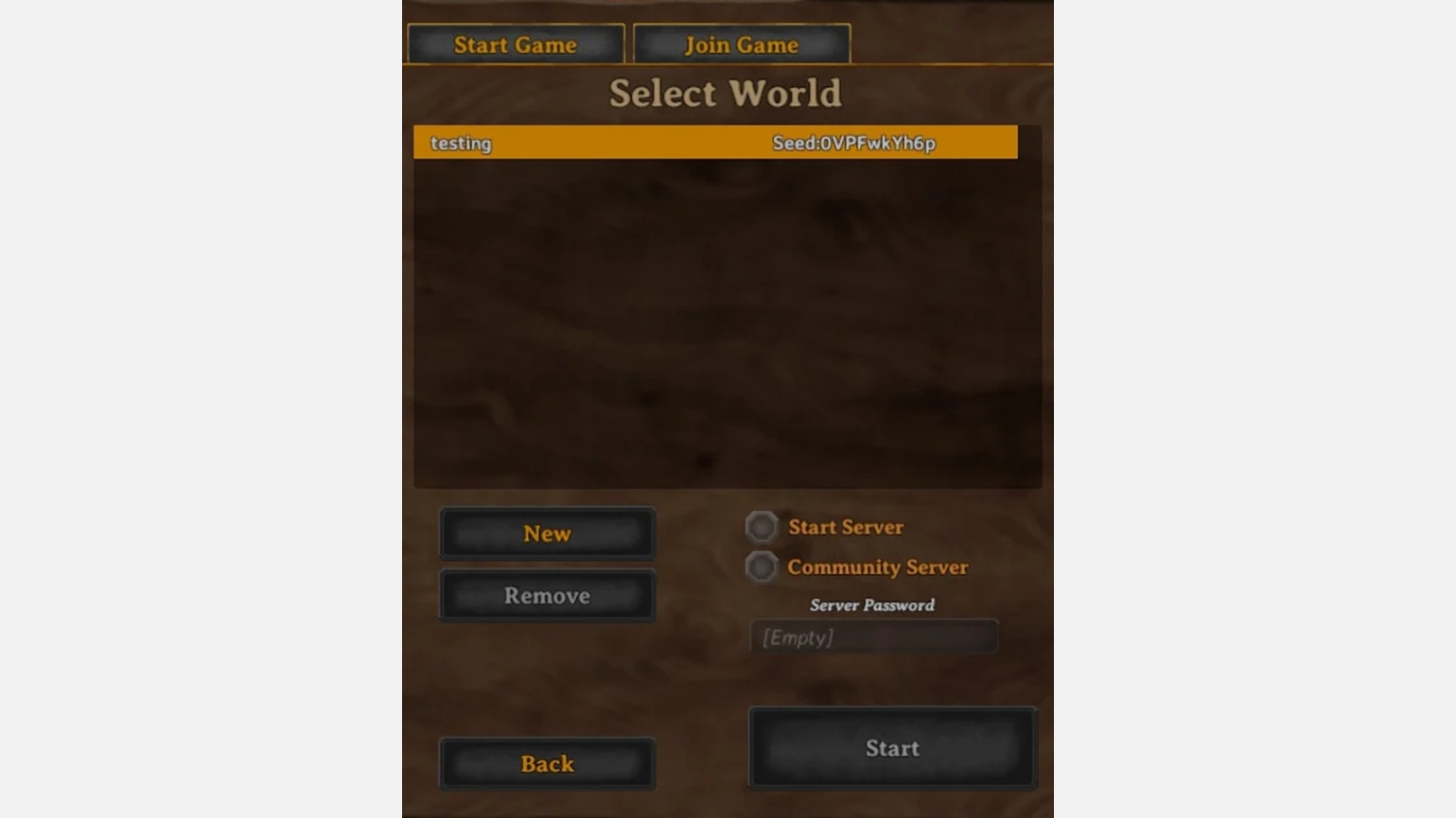
1. Go to Start Game.
2. Select Create New.
3. Enter the exact seed.
4. Check uppercase and lowercase letters.
5. Remove any extra spaces.
6. Name the world.
7. Create the world.
A missing character, incorrect letter case, or accidental space can produce a different map.
Bonus: Preview a Seed with a Map Viewer
A seed map viewer lets you inspect a world before playing. Depending on the tool and version, you can view biomes, boss altars, Haldor, dungeons, crypts, and other locations.
Useful options include:
- Valheim Map World Seed Extractor for extracting seeds from save files.
- Valheim.tools Seed Map for previewing terrain, biomes, bosses, traders, and locations.
- Valheim Map World Viewer for checking world layouts before creating a new game.
Use a viewer that supports your current Valheim version. A map generated for an older version may not accurately show content added or changed in later updates.
FAQ
Q: Can I change the seed of an existing world?
No. A world’s seed is fixed when the world is created. To use another seed, create a new world.
Q: Will old seeds work after Valheim 1.0 or the Deep North update?
Older seeds will generally remain usable, but unexplored areas may be affected by major world-generation changes. Check the seed with a version-compatible viewer before starting a new long-term world.
Q: How can multiplayer players use the same map?
The host or server administrator should enter the chosen seed when creating the world. Every player who joins that server will then play on the same generated map.
Q: Why does my seed create a different world?
Check that you used the same game version and copied the seed exactly. Uppercase letters, lowercase letters, missing characters, and extra spaces can all cause a different result.
 NEWS
NEWS REVIEWS
 HOWTO
HOWTO








