How to Set Up PojavLauncher: Mods, Shaders, and Performance Tips
2026-07-22
Complete PojavLauncher setup guide. Learn how to install mods, add shaders, configure touch controls, fix common issues, and get the best performance on Android.
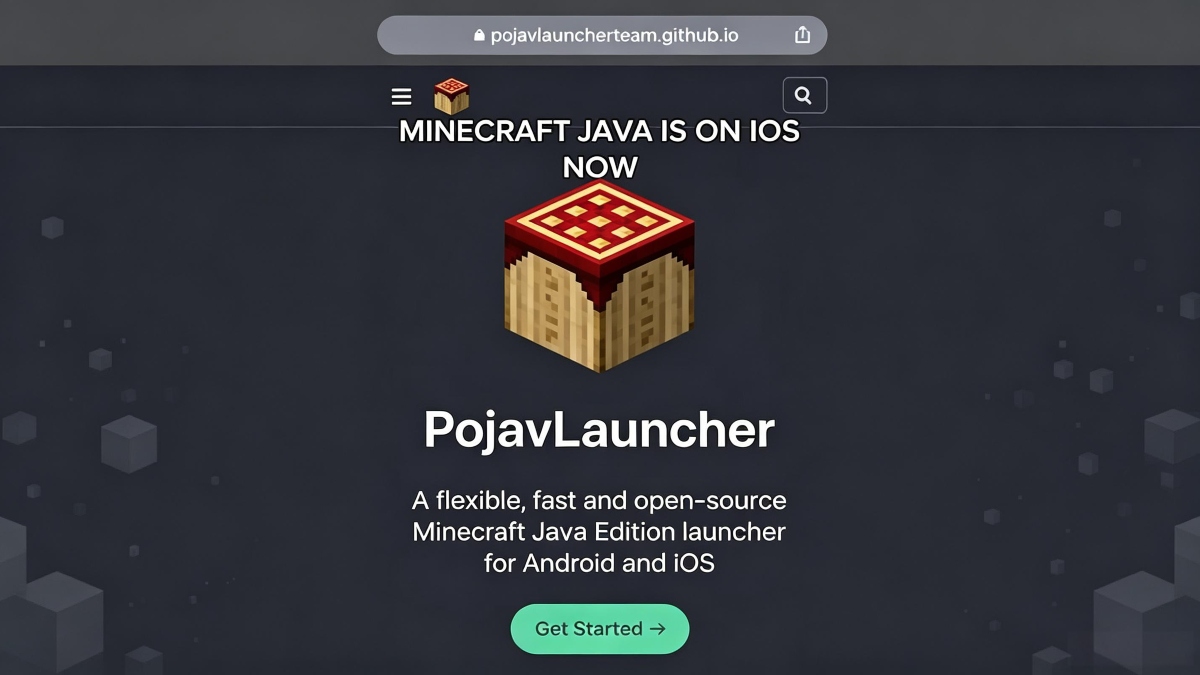
Setting up PojavLauncher correctly makes the difference between a smooth Minecraft Java experience on your phone and a frustrating slideshow. This guide covers installation, mod setup, shader configuration, touch control tuning, and fixes for the most common problems.
Before You Install
PojavLauncher runs Minecraft Java Edition, which is more demanding than Bedrock. Check your device specs first:
- Android 5.0 or newer, but Android 8.1+ is strongly recommended for modern versions.
- At least 2GB of free RAM, 4GB is better if you plan to use mods.
- About 2GB of free storage, more if you're adding modpacks.
The launcher itself is small, but Minecraft game files add up fast. A clean install of version 1.21 takes about 1GB before any mods.
Step 1: Download and Install
Grab the latest PojavLauncher APK from the link below. The Gladiolus build (January 2025) is the most recent stable release and supports Minecraft 1.21+ with the LTW renderer.
PojavLauncher is a Minecraft Java Edition launcher app that runs supported Java Edition releases on Android devices.
After installation, open the app and wait for the initial setup. On first launch, PojavLauncher downloads runtime components. This takes a minute or two depending on your connection.
Step 2: Log In
Tap the account icon in the top-left corner and choose your login method.
Microsoft account (recommended): You need to own Minecraft Java Edition. Tap "Microsoft Account," sign in with your Microsoft credentials, and the launcher verifies your license. This gives you access to online servers and your purchased skins.
Offline account: Enter any username and skip the password field. This works without a Microsoft account but restricts you to single-player and offline-mode servers. Skins need to be managed manually through the skin folder in your Minecraft directory.
Multiple accounts are supported, you can switch between them from the account menu without logging out.
Step 3: Pick Your Minecraft Version and Renderer
Before launching, tap the version selector. You'll see every Minecraft release from the earliest alpha builds to the latest snapshots. Pick your version, then choose your renderer:
- LTW (Large Thin Wrapper): Best compatibility with modern versions and mods. Supports Sodium, Iris, Create, and ReplayMod. This is the default and what you should use for Minecraft 1.17+.
- GL4ES: Fallback renderer for older versions or devices where LTW has issues. Lower compatibility with mods but works on a wider range of hardware.
- Zink: Experimental Vulkan-based renderer. Potentially faster on devices with good Vulkan drivers, but less stable. Re-added in the Edelweiss release as an experimental option.
If you're unsure, use LTW. Switch to GL4ES only if you run into rendering problems.
Step 4: Install Mods
PojavLauncher supports Forge, Fabric, Quilt, and OptiFine. The setup process depends on which one you need.
Installing a mod loader:
- In the version selector, choose a version that matches your desired mod loader (e.g., 1.20.1 for most stable modpacks).
- Tap the settings icon next to the version and enable Forge or Fabric.
- The launcher downloads and installs the mod loader automatically on next launch.
- After the first successful launch with the mod loader, a
modsfolder appears in your Minecraft directory.
Adding individual mods:
- Find your Minecraft directory, usually at
/storage/emulated/0/games/PojavLauncher/.minecraft/. - Drop
.jarmod files into themodsfolder. - Launch the game. Mods load automatically if they're compatible with your installed mod loader version.
Installing modpacks (Edelweiss and later):
- From the launcher, select the modpack browser.
- Search CurseForge or Modrinth for packs.
- Pick a pack, and the launcher handles downloading all mods, config files, and dependencies.
Fabric is generally the better choice for performance on mobile. Sodium and Lithium, the two biggest performance mods, are Fabric-native.
Step 5: Add Shaders
Shaders make Minecraft look dramatically better, but they're the most demanding thing you can add. Here's how to set them up:
- Install OptiFine (for the matching Minecraft version) or Fabric with the Iris mod.
- Download a shader pack, look for mobile-friendly options like Complementary Reimagined on low settings or BSL with shadows turned off.
- Drop the shader zip file into the
shaderpacksfolder in your Minecraft directory. - In-game, go to Video Settings → Shaders and select your pack.
Start with shader settings turned low. Shadows are the biggest FPS killer; disable them first if performance tanks. Render distance also matters more with shaders. Keep it at 6-8 chunks unless you're on a flagship phone.
Step 6: Configure Touch Controls
Default touch controls work for basic play but feel awkward for anything precise. Customize them:
- In-game, open the pause menu and find the control editor.
- Drag buttons to reposition them, resize by pinching, and adjust transparency.
- Common tweaks: enlarge the jump button, add a dedicated sneak toggle, move the attack button closer to your right thumb, add hotbar slot shortcuts.
- Save your layout, you can create multiple layouts for different game modes.
For serious play, connect a Bluetooth keyboard and mouse or a controller. PojavLauncher supports full key mapping, so a connected keyboard works exactly like it does on PC. Most Bluetooth gamepads work out of the box, and Switch Pro controllers got dedicated support in the Foxglove release.
PojavLauncher is a Minecraft Java Edition launcher app that runs supported Java Edition releases on Android devices.
- How to Download PojavLauncher Old Versions on Android
- How to Download PojavLauncher APK Latest Version gladiolus-20250118-c04e3af-v3_openjdk for Android 2025
- How to Download PDF Reader - PDF Converter APK Latest Version 5.0.6 for Android 2026

Minecraft Trial is a sandbox survival game that lets you test the core Minecraft experience for a limited time.

- Minecraft 1.26.10 Bedrock: all the new features of the Tiny Takeover, eternal babies and more
- Minecraft 1.26.3.1 APK: Update Notes, Hotfix 26.3 Fixes and Safe Download on Android
- Minecraft 1.26.1.1 Update: Everything You Should Know
Minecraft is a pixel building adventure game and it is popular all over the world. You can play it on all platforms, including PC/Mac, mobile, tablet etc.
- How to Download PDF Reader - PDF Converter APK Latest Version 5.0.6 for Android 2026
- How to Download Google Messages APK Latest Version for Android 2026
- How to Download Finch: Self-Care Pet APK Latest Version 3.73.218 for Android 2026
Fixing Common Problems
Game Shows a Black or Red Screen (1.21.1+)
This was a known issue with the GL4ES renderer on newer Minecraft versions. The Gladiolus build fixed it. Make sure you're using the LTW renderer for versions 1.21.1 and above. If you're on an older PojavLauncher build, update to Gladiolus.
Launcher Crashes on Startup
Clear the launcher's cache from Android Settings → Apps → PojavLauncher → Storage → Clear Cache. If that doesn't work, the Java runtime might be corrupted, reinstall the app. Your worlds and mods in the .minecraft folder won't be affected.
Game Runs at Low FPS
Drop render distance to 6 chunks. Turn off clouds and smooth lighting. Use Fabric with Sodium instead of Forge for better baseline performance. If you have shaders, disable shadows. On 3GB RAM or less, close all background apps before launching.
Mods Don't Load
Check that the mod .jar files are in the correct mods folder , not in resourcepacks or the root directory. Verify the mod is built for your installed Minecraft version and mod loader. Forge mods don't work with Fabric, and vice versa.
Can't Log In with Microsoft Account
Microsoft occasionally changes its authentication flow. If the browser popup hangs, copy the login URL and open it in your phone's default browser instead. After logging in there, the app should pick up the authentication token.
Keeping Things Running
PojavLauncher's February 2025 patch fixed UI freezes and control editor crashes. Make sure you're on build gladiolus-20250118 or later. Check APKPure for updates, while the original GitHub project is archived, community builds and the Amethyst successor continue to receive fixes.
For the best experience with heavy modpacks, allocate 2 - 4GB of RAM in the launcher's Java settings. Don't go above your device's available free RAM, or Android will kill the process mid-game.
 NEWS
NEWS REVIEWS
 HOWTO
HOWTO