How to Use Flipboard on Android: Complete News Reader Guide

2026-08-27
A step-by-step guide to using Flipboard on Android, covering RSS setup, magazine creation, social media integration, and the new open social web features.
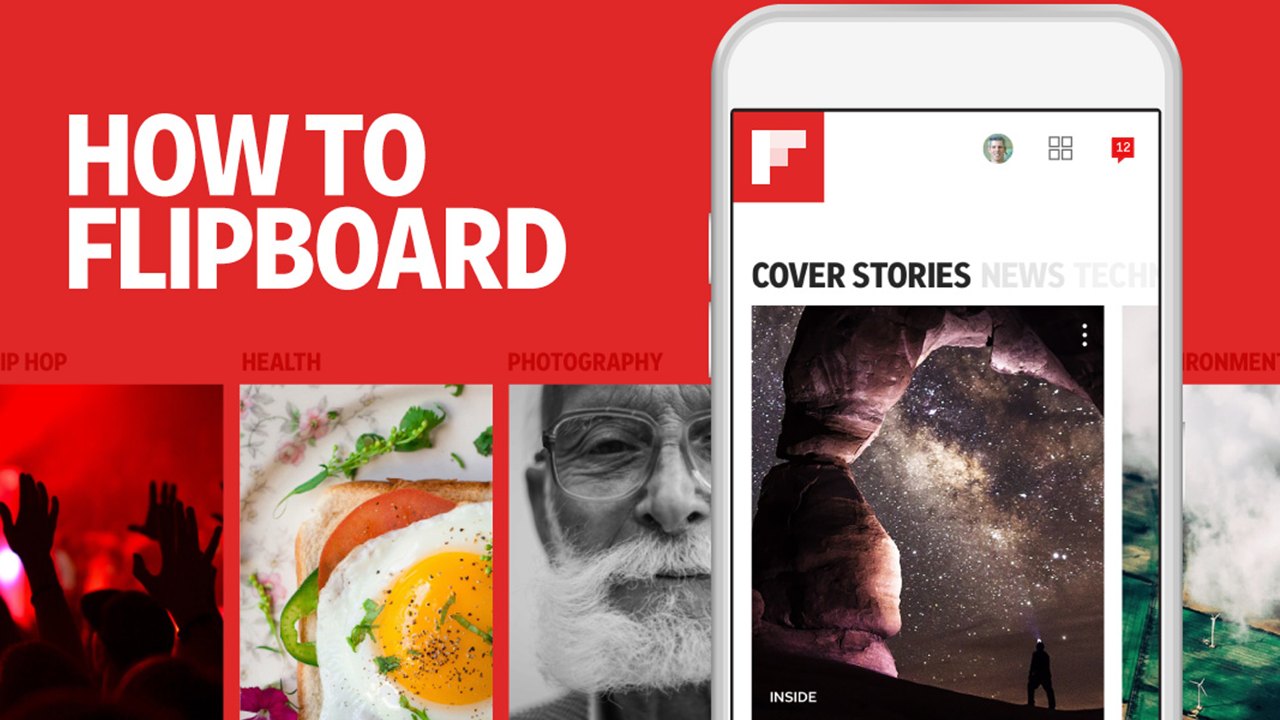

Award winning app for latest news and informative stories you want every day.
Flipboard has been around since 2010, and it's grown from a simple magazine-style news reader into something far more interesting. With its recent acquisition of Graze, a Bluesky feed-building startup, Flipboard is doubling down on the open social web. If you're tired of algorithm-driven feeds that show you what a platform thinks you should see, this app is worth a serious look.
This guide walks through everything you need to set up Flipboard on Android, build your own magazines, connect RSS feeds, and tap into decentralized social networks like Bluesky and Mastodon. Casual readers and power curators alike will find the steps below cover the whole process.
Step: Install and Set Up Flipboard on Android
- Getting started with Flipboard is straightforward, but the initial setup matters more than you'd think. The choices you make during onboarding shape what content the app surfaces for weeks afterward.
- Download Flipboard from APKPure or Google Play, and the install size is reasonable for what it does. Once you open the app, you'll see a topic selection screen. Pick five to ten topics that genuinely interest you. Don't overthink this. You can change them later.
- After topic selection, sign in with a Google account, email, or phone number. Signing in matters because Flipboard uses your account to sync magazines across devices. If you skip this, your magazines stay local and disappear when you reinstall.
The first time your feed loads, give it about thirty seconds. Flipboard pulls articles from its publisher network based on your selected topics. The home feed is your starting point. You'll refine it as you use the app.
Step: Build Your First Flipboard Magazine
A magazine is a collection of articles you've saved. Think of it as a playlist, but for reading. This is where Flipboard stops being a generic news reader and becomes something personal.
- Tap the plus icon on any article in your feed to flip it into a magazine. If you haven't created a magazine yet, the app prompts you to make one. Give it a clear name. "Tech News" is fine. "AI Safety Papers I Keep Meaning to Read" is better.
- You can also create a magazine from the profile tab. Tap your profile picture, then the plus button next to "My Magazines." Choose whether the magazine is public or private. Public magazines can be followed by other Flipboard users. Private ones are for your eyes only.
- The key to a useful magazine is consistency. Flip two or three articles into it each day. Over a month, that's sixty to ninety articles curated around a theme you care about. You can share the magazine link with friends or colleagues, and they can follow it without needing a Flipboard account to read.
Step: Add RSS Feeds to Flipboard
RSS is where Flipboard earns its keep as a news reader. Instead of waiting for Flipboard's algorithm to surface articles, you can pipe in feeds from sites you already trust.
- Open the search tab and type a publication's name. If Flipboard has a partnership with that publisher, you'll see a source card you can follow. But for independent blogs or niche sites that aren't in Flipboard's publisher network, you'll need to add the RSS URL directly.
- Here's how: Copy the RSS feed URL from the site you want to follow. In Flipboard, go to your profile, tap the gear icon for settings, then select "Add a Source." Paste the URL. Flipboard validates it and adds it to your sources. Articles from that feed start appearing in your home feed within a few minutes.
- You can add up to a certain number of sources on the free tier. If you hit the limit, remove sources you no longer read. The app doesn't tell you which feeds are active, so it's worth auditing your source list every couple of months. Dead feeds waste slots and clog your feed with nothing.
Step: Connect Bluesky and Mastodon Accounts
This is the part that makes Flipboard different from every other news reader on Android. In 2026, Flipboard integrated directly with decentralized social protocols. After acquiring Graze in August 2026, Flipboard expanded its open social web features, including Bluesky (AT Protocol) and Mastodon (ActivityPub) support.
To connect Bluesky, go to Settings > Connected Accounts > Bluesky. Log in with your Bluesky handle. Once connected, posts from people you follow on Bluesky appear in your Flipboard feed alongside articles from traditional publishers. You can flip Bluesky posts into magazines the same way you flip articles.
For Mastodon, the process is similar. Settings > Connected Accounts > Mastodon. Enter your instance URL and log in. Posts from your home timeline show up in Flipboard's feed. The integration respects your Mastodon instance's settings, so if your instance blocks certain domains, those posts won't appear in Flipboard either.
Why does this matter? Most news readers treat social posts and articles as separate streams. Flipboard blends them into one magazine-style layout. You see a long-form investigation from a news outlet, then a thread from a Bluesky account reacting to it, then a Mastodon post linking to a related paper. That's a different reading experience from doomscrolling a timeline.
Step: Use Smart Briefings for Quick Updates
Smart Briefings are Flipboard's AI-powered summaries. Instead of reading ten articles about the same news event, you get a condensed briefing that pulls key points from multiple sources.
Find Smart Briefings in the "For You" tab. They appear as cards with a "Briefing" label. Tap one to read the summary. Each briefing cites the sources it pulled from, so you can tap through to the original articles if you want depth.
The briefings update throughout the day. In the morning, you might see a briefing about overnight tech news. By afternoon, it's been refreshed with new developments. You can't create your own briefings. They're generated by Flipboard's editorial team with AI assistance, covering major topics and trending stories.
Are they useful? For catching up on news you don't follow closely, yes. For topics in your core areas, you'll probably prefer reading the full articles. Either way, they're a feature worth knowing about.
Step: Organize and Share Your Magazines
Once you've built a few magazines, managing them becomes important. A disorganized magazine collection is just another feed.
From your profile, you can reorder magazines by dragging them. Put the ones you check daily at the top. Edit magazine covers by tapping the three-dot menu on any magazine and selecting "Edit." You can change the cover image, description, and category.
To share a magazine, open it and tap the share icon. You get a link that works in any browser. Anyone can read the articles in your public magazine without installing Flipboard. This is handy for sharing industry news with a team or sending a curated reading list to a friend.
For collaboration, Flipboard lets you add contributors to a magazine. Tap the three-dot menu on a magazine, select "Contributors," and invite by email or Flipboard username. Contributors can flip articles into the shared magazine. This turns Flipboard into a lightweight content curation tool for small teams.
Tips and Tricks for Better Flipboard Use
- Mute sources you don't like. If a publisher keeps showing up in your feed and you never read their articles, tap the three-dot menu on any article from that source and select "Mute." It cleans up your feed immediately.
- Use the "Read Later" feature. When you see something interesting but don't have time, tap the bookmark icon. Saved articles go to a private list you can access offline. Perfect for commutes or flights.
- Follow people, not just topics. Flipboard profiles curate articles too. Finding people who share your interests and following their magazines surfaces articles the algorithm might miss.
- Check your source list regularly. RSS feeds die. Publications go behind paywalls. Every few months, review your sources and remove the ones that no longer serve you.
- Try the web version too. Flipboard.com mirrors your account. If you're at a desktop and want to read your magazines, the web interface is clean and fast.
Troubleshooting Common Flipboard Problems
- Articles not loading in the feed. Check your internet connection first. If that's fine, pull down to refresh. If it persists, go to Settings > Account > Clear Cache. This resets the feed without deleting your magazines.
- RSS feed not adding. Make sure the URL is a valid RSS or Atom feed, not a regular web page. Some sites don't expose their feeds openly. Try adding
/feedor/rssto the site's URL. If it still fails, the feed might be behind a firewall or require authentication, which Flipboard doesn't support. - Bluesky posts not appearing. Verify your Bluesky connection in Settings > Connected Accounts. If it shows as disconnected, log in again. Also check that the people you follow on Bluesky are actually posting. Sounds obvious, but a quiet timeline isn't a bug.
- Battery drain. Flipboard syncs content in the background. If you notice battery issues, go to Settings and reduce the sync frequency. Or turn off background sync entirely and refresh manually when you open the app.
- Can't log in after reinstall. Use the same sign-in method you used originally. If you signed up with Google, don't try email. Flipboard's account recovery is tied to the auth method, and mixing them up creates a new account.
Conclusion
Flipboard on Android is a news reader that respects your attention. You pick the sources, you build the magazines, and you decide what's worth reading. With Bluesky and Mastodon integration, it's also one of the few apps that bridges traditional publishing and the open social web without making you switch between five different apps.
Download Flipboard from APKPure, pick a handful of topics, and start flipping articles into your first magazine. The setup takes about ten minutes. The payoff is a reading experience that gets better the more you use it.
Award winning app for latest news and informative stories you want every day.
 NEWS
NEWS REVIEWS
 HOWTO
HOWTO