How to Use Gemini AI, Google's AI Assistant on Android, iOS, and Web

2026-08-04
Master Gemini AI with our guide. Covering setup, basic prompts and expert tactics to maximize Google’s AI assistant across Android and web browsers.
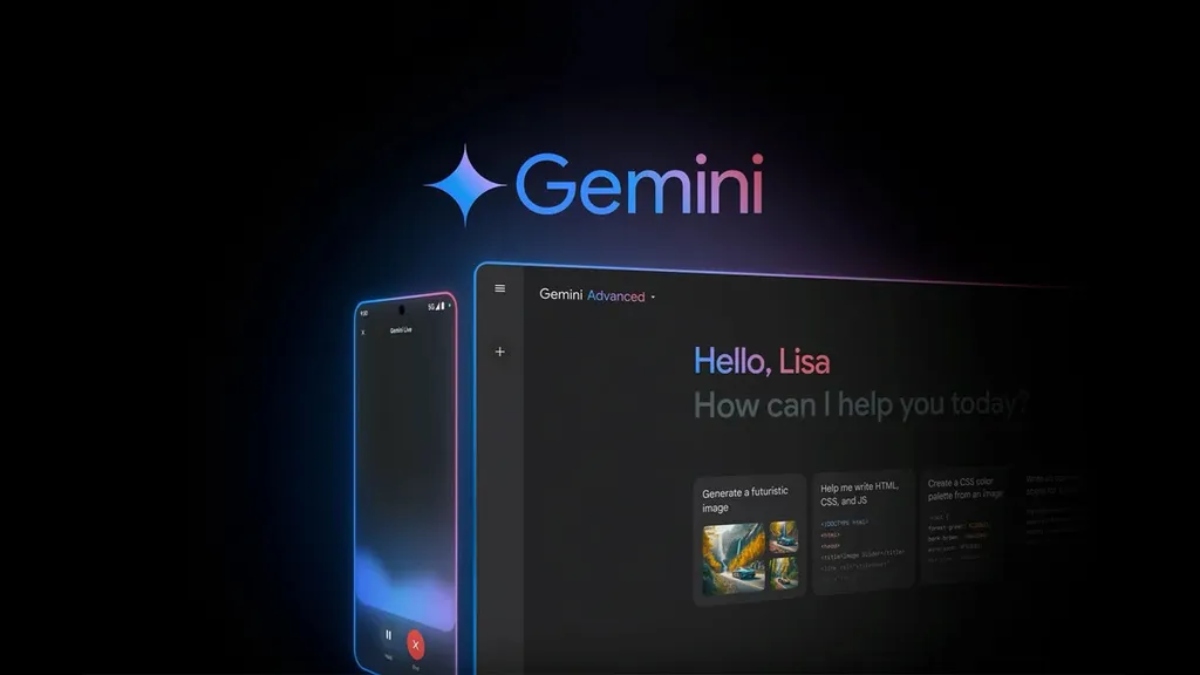

Google Gemini is a productivity and creativity app that supports live conversations and multimodal creation.
Gemini is Google's AI assistant, available on Android, iOS, and the web. Getting started is simple, but getting the most out of it takes knowing what it can actually do beyond basic questions. Here's how to use Gemini AI from the first launch to advanced features.
Getting Started
Step 1: Download the Gemini App
- Android: Download the Gemini app from APKPure
- iOS: Access Gemini through the App Store.
- Web: Use Gemini in any browser at gemini.google.com. Sign in with your Google account.

Step 2: Complete Gemini Setups
On Android, Gemini asks during setup if you want to replace Google Assistant. If you say yes, saying "Hey Google" or long-pressing the home button launches Gemini instead. If you keep Google Assistant and just want Gemini for certain tasks, you can launch the app separately.
Step 3: Start Using Gemini
Once you're in, the interface is simple. A text input bar at the bottom, a microphone button for voice input, and a camera or upload button for images and files. Type your question or request and hit send.
Basic Commands
- You can ask Gemini anything you'd ask a search engine. It gives you an answer in conversation instead of links. "What's the best time to visit Tokyo?" gets you a detailed recommendation with seasons, weather, and tips, not just links to travel blogs.
- You can ask Gemini to write something. "Write a professional email declining a meeting but offering to reschedule next week." You get a draft you can copy and edit.
- You can ask for explanations. "Explain how blockchain works in simple terms." You get a plain-language breakdown.
- You can ask for step-by-step instructions. "How do I reset my router?" You get numbered steps.
The key difference from a search engine is that Gemini remembers the context of your conversation. You can follow up with "and how long should I wait before plugging it back in?" without restating the topic.
Using Google Service Integration
This is where Gemini differs from other AI assistants. You can grant Gemini access to your Google services and ask questions across them.
"Find the email from Sarah about the budget meeting and summarize the main points." Gemini searches your Gmail inbox for Sarah's budget email and gives you a summary. "What's on my calendar for Thursday afternoon?" pulls from Google Calendar. "Show me the fastest route to the airport from my location" uses Google Maps. "Find a YouTube tutorial on how to change a bike tire" searches YouTube and can summarize the key steps from the video.
Each service requires permission, which you grant during setup or later in settings. You can revoke access anytime. Gemini doesn't permanently index your private data. It accesses your services when you ask and only for that specific request.
Image Features
- Tap the camera or upload button to send an image to Gemini. You can ask it to describe what's in the photo, identify objects, plants, or landmarks, translate text visible in the image, or analyze charts and diagrams.
- You can also ask Gemini to generate images. "Create an image of a cozy cabin in the mountains at sunset." Gemini uses Google's Imagen model to generate the image directly in the chat.
- The free tier's image generation is capped in quality and quantity. Advanced subscribers get higher-resolution outputs and more generous generation limits.
Voice Inputs
Tap the microphone button or, if Gemini is your default assistant, say "Hey Google" followed by your question. Voice works for all the same tasks as text, though it's more natural for quick questions than for long, complex prompts that require precise wording.
Gemini responds in voice as well as text. On Android, you hear the response spoken aloud while also seeing it on screen. This is useful when you're driving, cooking, or otherwise can't look at your phone.
Pro Tips for Better Results
- Be specific. "Tell me about climate change" gets a generic overview. "Explain the main findings of the latest IPCC report and what they mean for coastal cities" gets a focused, useful answer.
- Break complex tasks into steps. Instead of "plan my trip to Japan," try "suggest a 7-day itinerary for Tokyo and Kyoto in October," then follow up with "now suggest hotels near the Shinjuku area under $150 a night."
- Use follow-ups. Treat Gemini like a conversation, not a one-shot search. Build on previous responses with new questions that reference what was already discussed.
- Upload context. If you need Gemini to analyze a document, upload it directly rather than trying to describe it. "Summarize this PDF" with the file attached works better than trying to explain the document's contents.
- Correct it when it's wrong. Gemini sometimes gets things wrong, like all AI. If a response isn't accurate, say so. "That's not right. The event was in June, not July." The model adjusts and tries again.
Google Gemini is a productivity and creativity app that supports live conversations and multimodal creation.
- How to Download DANA Indonesia Digital Wallet APK Latest Version 2.147.1 for Android 2026
- How to Download WallFancy - 4K Live Wallpaper APK Latest Version 1.9.1 for Android 2026
- How to Download Google Pay: Save and Pay APK Latest Version for Android 2026
 NEWS
NEWS REVIEWS
 HOWTO
HOWTO