How to Use Seekee: Complete Beginner's Tutorial

2026-08-05
Learn how to use Seekee with this step-by-step beginner's tutorial. Master AI search, image generation, document tools, and writing features in the Seekee app.
Seekee packs a lot into one app — AI search, image generation, document tools, writing, translation, and visual recognition. If you just downloaded it and aren't sure where to start, this guide walks you through every major feature.

Seekee is an AI browser and assistant that turns search into a conversational workspace.
Getting Started
After installing Seekee and signing up (email, phone, or Google account), you land on the home screen. The MegaSearch Bar sits at the top. Below it, quick-access tiles for different AI tools: Search, Create, Documents, Write, and Assistant. The bottom navigation has Home, Discover, Create, and Profile tabs.
Spend thirty seconds exploring the layout before diving in. The Discover tab surfaces trending topics and popular searches — useful for getting a feel for what the app can do.
How to Use Seekee's AI Search
The search bar is Seekee's main feature. Here's how to get the best results out of it:
Be specific. "Best coffee brewing methods" gives a generic list. "Best pour-over coffee method for beginners with budget equipment" returns a tailored guide with specific product mentions and technique details. The AI responds to detail — the more context you give, the sharper the answer.
Ask follow-ups. Seekee maintains context within a search session. After asking about coffee methods, you can follow up with "what grind size for each method?" and the AI remembers you're talking about coffee. You don't need to restate the topic each time.
Use it like a conversation. Instead of keyword-style searching, phrase your query as a question. "What's the difference between term and whole life insurance?" works better than "term vs whole life insurance explained."
Request format tweaks. If the answer is too long, say "summarize that." If you want bullet points, ask for them. The AI adjusts its output when you give feedback.
How to Generate Images
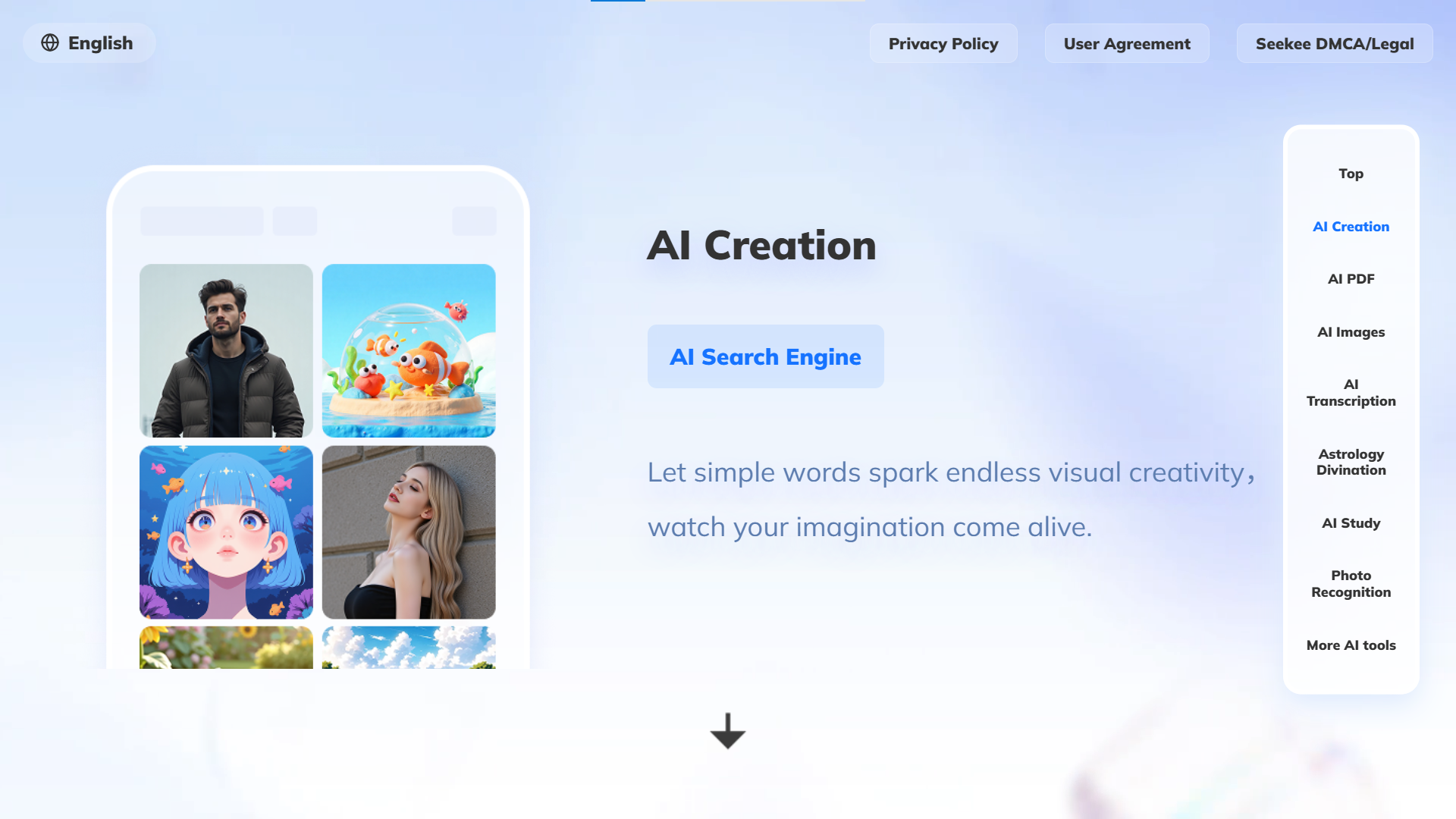
Tap the Create tile or select Image Generation from the tools menu. Type a description of what you want. The more detail, the better the result. "A cat" gives a generic cat. "An orange tabby cat wearing a tiny detective hat, sitting on a stack of books, watercolor style" gives something specific and usable.
After the image generates, you can save it to your gallery, share it directly, or ask for revisions. The free tier limits you to a certain number of generations per day, so be reasonably specific before hitting generate.

How to Work with Documents
Tap Documents, then upload a PDF, Word file, or text document. Once uploaded, you can ask Seekee to:
- Summarize — "Summarize this report in three bullet points"
- Translate — "Translate this document to Spanish"
- Ask questions — "What's the total budget mentioned in this document?"
- Create — "Turn these notes into a formatted report"
The document stays loaded in your current session, so you can ask multiple questions about the same file without re-uploading. The AI pulls answers directly from the document content — it doesn't invent information.

How to Use the Writing Assistant
Open the Write tool and pick a format: blog post, work report, video script, social media copy, project proposal, or general text. Give it a topic and rough outline of what you need. The AI produces a draft you can edit, expand, or regenerate.
For best results, be specific about tone and audience. "Write a project proposal for a new office layout, formal tone, aimed at the facilities director" produces a much better draft than "write a work thing."
The writing tool isn't going to produce publish-ready content in one shot. Think of it as a first-draft generator. You'll still need to edit, fact-check, and add your own voice to the output.

Quick Tips for Better Results
- Start broad, then narrow. Ask a general question first, then drill into specifics with follow-ups. The AI builds context as you go.
- Don't treat AI output as fact. The search results are synthesized from web sources that might be outdated or wrong. For anything important, verify with a direct source.
- Use the right tool. Don't ask the writing assistant to generate images or the image generator to summarize documents. Each tool does one thing well.
- Save frequently. If you generate something useful, save it immediately. Sessions can reset.
Seekee is an AI browser and assistant that turns search into a conversational workspace.
- How to Download Merge Prison:загадки и секреты APK Latest Version 1.147.2536 for Android 2026
- How to Download Free Adblocker Browser - Adblock & Popup Blocker APK Latest Version 139.1.4141 for Android 2026
- How to Download Stretch Guy APK Latest Version 0.16.2 for Android 2026
Once you've tried all the major features, you'll quickly figure out which ones fit your workflow and which you can ignore. Most people use Seekee primarily for AI search with occasional image generation or document work on the side. Start there and branch out as needed.
 NEWS
NEWS REVIEWS
 HOWTO
HOWTO