How to Install Pokemon TCG Mods in TCG Card Shop Simulator

2026-10-09
Want Pokemon packs in TCG Card Shop Simulator? This guide walks through BepInEx, Enhanced Prefab Loader, and installing Pokemon TCG mods without crashing your save.
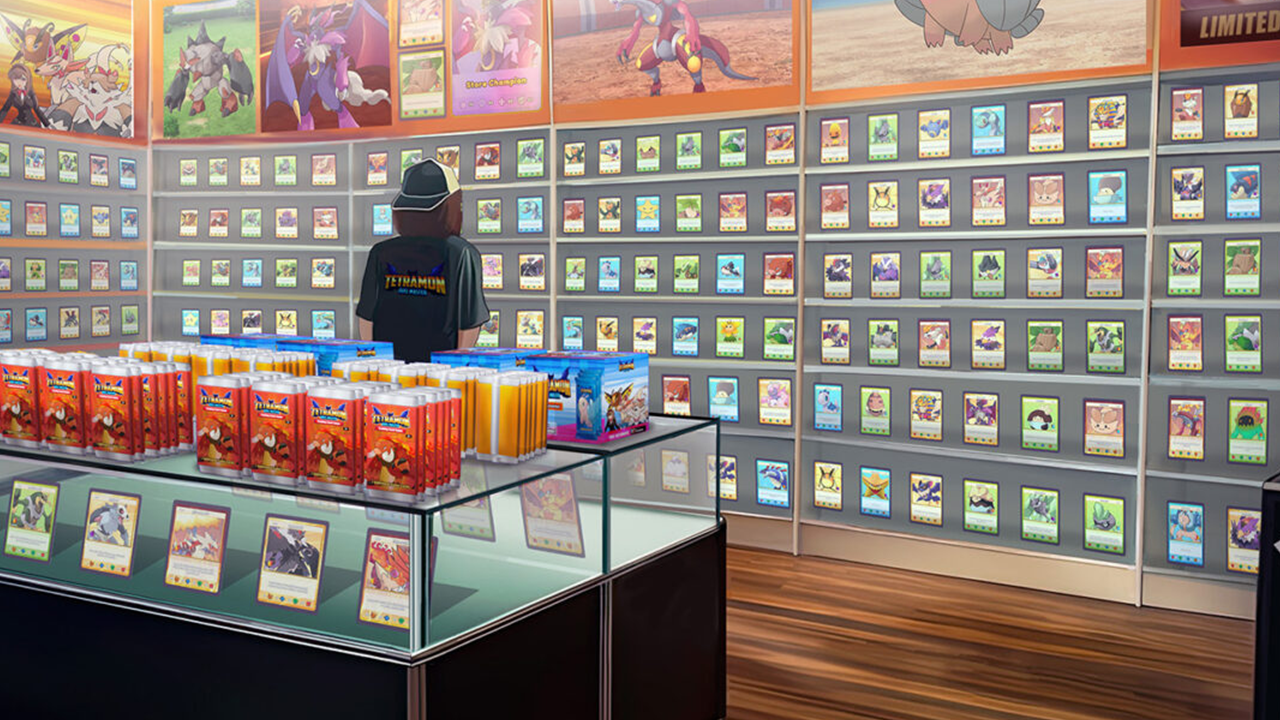
Pokemon TCG mods are the fastest way to turn TCG Card Shop Simulator into the shop you actually want to run. The catch is that they don't drop in alone. Every Pokemon card mod sits on top of two prerequisites, and skipping either one is the main reason installs fail. This guide walks you through the whole chain in order.
You'll end up with Pokemon booster packs on the game's card machine, a card pool that can run into the thousands, and a shop that looks the part. Set aside twenty minutes and do the steps in sequence.
What You Need Before Installing Pokemon TCG Mods
Two tools carry every card mod for this game. BepInEx is the mod loader, the framework that lets the game run code it wasn't built to run. Enhanced Prefab Loader, or EPL, is the helper that lets a mod add new cards, packs, display boxes, and props. BepInEx gets mods through the door, EPL gives them the pieces to build with.
You also need the PC version of the game, installed through Steam or Xbox Game Preview. This is PC modding, so the mobile app doesn't enter the picture. If you only have a phone, there's a card shop tycoon sim that captures the same collecting loop, but it's a separate game and won't take these mods.
Finally, pick your Pokemon mod ahead of time. Extended TCGs - Pokemon TCG adds Pokemon booster packs with e-Card and ex series sets. PTCGO builds around Pokemon and depends on EPL. Real TCG Overhaul reskins the game's art without adding new entries. Know which one you're installing before you start, because the install path differs slightly.
Step 1: Back Up Your TCG Card Shop Simulator Save
Do this first, without exception. Your card collection is the whole game, and a bad mod install can leave a save that won't load. Find your save folder before you touch anything and copy it somewhere safe outside the game directory.
The reason this matters more here than in most games: card mods write new entries into your collection. If you add a mod, collect its cards, then remove the mod, those cards can contain data the base game no longer understands. That's how a collection becomes unloadable. A backup is the only clean undo.
Store the copy somewhere obvious, like a folder on your desktop labeled with today's date. You won't need it if everything works, and you'll be very glad it exists if anything doesn't.
Step 2: Install BepInEx for TCG Card Shop Simulator
Grab the BepInEx pack built for this game rather than a generic build. Version mismatch here poisons everything downstream.
- Close the game completely.
- Download the BepInEx pack that matches your current game build.
- Extract the archive and copy its contents into the game's root folder. On Steam that's usually under steamapps, in the common folder for TCG Card Shop Simulator.
- Confirm that winhttp.dll and the BepInEx folder sit in the same directory as the game's executable.
- Launch the game once and let it finish loading. A small console window popping up means BepInEx is working.
- Close the game. The BepInEx folder structure is now in place.
That first launch is the verification step. If no console window appears, BepInEx isn't loaded, and nothing you install after this will work. Fix it before moving on.
Step 3: Add Enhanced Prefab Loader to the Plugins Folder
EPL is what separates a skin swap from a real content mod. Without it, mods that add new cards and packs have nowhere to register their parts.
- Download Enhanced Prefab Loader.
- Extract it and place its plugin files into the BepInEx plugins folder inside the game directory.
- If a mod ships as a folder rather than a loose file, drop that whole folder into the same plugins directory.
- Launch the game and press the BepInEx key, F1, to open the plugin menu.
- Check that EPL appears in the list. If it does, the loader is live.
If mods that add card expansions fail while pure reskins work, EPL is usually the missing link. Keep it current alongside BepInEx.
Step 4: Install the Pokemon Mod Files
Now the actual Pokemon content goes in. The exact placement depends on how the mod ships.
- Download your chosen Pokemon mod and extract the archive to a folder of its own, not the game directory.
- Look for a BepInEx folder in the extracted files. Some mods also include a textures folder or a set of .dll files.
- Drag the BepInEx folder into the game root. When Windows asks about replacing files, click yes.
- For loose plugin files, move them into the BepInEx plugins folder you set up in step 3.
- Launch the game and open the in-game shop.
For content mods, you often need to buy a license inside the game before the Pokemon packs appear on the card machine. Packs that ship one file per series, such as the Mega Evolution sets, need each file dropped in the same way. Start with a single mod, confirm it works, then add more.
Step 5: Verify Pokemon TCG Mods Load Correctly
Confirm the mod is doing its job before you customize further.
- Open the game and head to the card machine.
- Look for the Pokemon packs or the reskinned art, depending on your mod.
- If it's a content mod, buy the relevant license and open a pack to confirm the cards are Pokemon.
- Open the BepInEx menu with F1 and check that no plugin shows an error at startup.
If the packs don't show, recheck that EPL loaded and that the mod's files landed in the right folder. Most "nothing shows up" reports trace back to one of those two.

Tips for a Stable Pokemon TCG Mod Setup
A few habits keep a modded shop running across game updates, which arrive fairly often.
- Match versions across the board. The game, BepInEx, EPL, and the mod all need to line up. A patch that moves the game forward can leave an old loader behind.
- Add mods one at a time. When two go in together and something breaks, you've doubled the work of finding the cause.
- Keep your download source controlled. Only pull mods from established community hosts, and treat any file promising free currency or account perks as a red flag. Mods are fan-made, so scan what you install and treat safety like you would with any third-party software.
- Re-check after every game update. The game added a built-in card battle mode in its September 2025 update, and bigger patches like that are exactly when loader versions shift.
Troubleshooting Pokemon Mod Installs in TCG Card Shop Simulator
The game crashes on launch after installing a mod. This almost always means a version mismatch. Reinstall BepInEx and EPL to the versions your current game build expects, then re-add the mod. If it still crashes, remove the mod and confirm the base game starts clean.
Cards or packs don't appear in the shop. EPL likely didn't load. Open F1 and check the plugin list. If EPL is missing, its files went to the wrong folder.
A save refuses to load. You removed a content mod that had written new cards into your collection. Restore the backup from step 1, then either reinstall the mod or clear the affected cards before saving again.
Everything worked, then broke after an update. The game patched and the loader fell out of step. Update BepInEx and EPL to match, and check whether the mod itself has a newer build.
What You Can Do Now
You've got the full stack in place: BepInEx at the base, Enhanced Prefab Loader above it, and Pokemon TCG mods layered on top. From here you can stack reskins and content mods, organize your shop around Pokemon sets, and rebuild the collection goal the base game never quite delivered.
If you're starting fresh, grab the game from a trusted store, back up your first save, and install the loaders before any Pokemon mod. Do it in that order and the whole scene opens up. Keep the game updated and the loaders current, and your shop stays Pokemon-themed through every patch.
 NEWS
NEWS REVIEWS
 HOWTO
HOWTO