Seekee for PC: How to Run It on Desktop

2026-08-05
Learn how to run the Seekee AI app on Windows and Mac using Android emulators, with step-by-step instructions.
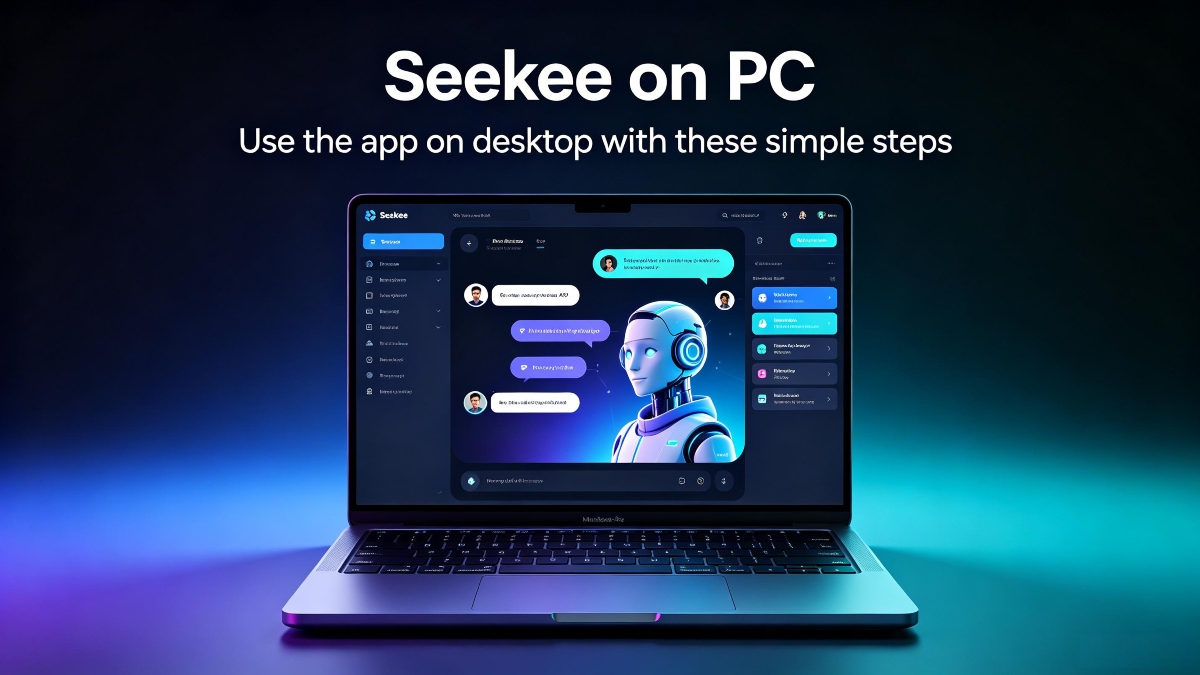
Seekee doesn't have a native Windows or Mac app, and there's no web version you can open in a browser. But you can still get the full Seekee experience on your computer. The most reliable method is running the Seekee Android APK through an emulator, which gives you access to every feature on a bigger screen with a keyboard.
Option 1: Android Emulator (Recommended)
An Android emulator creates a virtual phone or tablet on your PC. You install the emulator, then install Seekee inside it — same process as putting an app on a phone, just with a mouse and keyboard instead of a touchscreen. Here's how:
Step 1: Download an Android emulator. GameLoop and BlueStacks are the two most popular options. Both are free and support Windows. BlueStacks also works on Mac.
Step 2: Install the emulator. This takes a few minutes, and the installer is standard — accept the defaults and let it finish.
Step 3: Once the emulator opens, you'll see a home screen that looks like an Android phone. Open the built-in browser (Chrome usually comes pre-installed) and go to APKPure.
Step 4: Download Seekee APK latest version from APKPure.

Seekee is an AI browser and assistant that turns search into a conversational workspace.
Step 5: Install Seekee in the Android emulator. Open it from the app drawer, sign in, and you're ready to go.
All Seekee features work through the emulator: AI search, image generation, document tools, writing assistant, and visual recognition. The keyboard makes typing queries and editing AI-generated text much faster than on a phone. The larger screen makes document reading and image viewing more comfortable.
The trade-off is performance. Emulators use a fair amount of RAM and CPU, so an older or lower-spec computer might feel laggy. On a modern laptop or desktop with at least 8GB of RAM, the experience is smooth.
Option 2: Screen Mirroring
If you already use Seekee on your phone and just want to view it on a bigger screen, screen mirroring might be enough. Samsung phones have DeX built in — connect your phone to a monitor and you get a desktop-like interface. Other Android phones can use third-party mirroring apps or Windows' built-in Phone Link feature (Windows 11).
Screen mirroring displays your phone screen on your monitor, but you still control everything through the phone's touchscreen. It's good for reading AI-generated long-form content or examining images, but not great for heavy typing.
Option 3: Windows Subsystem for Android
Windows 11 users have a third option: the Windows Subsystem for Android (WSA). This built-in feature lets you run Android apps directly on Windows without a third-party emulator. It's more resource-efficient than BlueStacks or LDPlayer, but setup can be technical. You need to enable virtualization in your BIOS and install the Amazon Appstore or sideload APKs through developer tools.
If you're comfortable with Windows settings and don't mind a few extra setup steps, WSA gives the cleanest Seekee-on-PC experience.
Quick Summary
You can't use Seekee through a web browser. No amount of changing your user agent or requesting a desktop site will make the app's AI features load in a browser tab. The AI processing happens through Seekee's native app architecture, which requires either the actual mobile app or an emulated Android environment.
The easiest way to use Seekee on PC is GameLoop or BlueStacks — download the emulator, install the Seekee APK, and you've got the full AI toolkit on your desktop. Screen mirroring works if you just need a bigger display, and WSA is a leaner option for Windows 11 users who don't mind technical setup. Any of the three methods gives you Seekee's complete feature set on a larger screen with keyboard input.
- How to Download Heads Up! APK Latest Version 4.15.12 for Android 2026
- How to Download ZEE5: Movies, TV Shows, Series APK Latest Version 39.62.2 for Android 2026
- How to Download ONE PIECE TREASURE CRUISE-RPG APK Latest Version 16.1.6 for Android 2026
 NEWS
NEWS REVIEWS
 HOWTO
HOWTO