ChatGPT for Word: How OpenAI Brings Codex Into Microsoft Word

2026-09-20
OpenAI's ChatGPT for Word add-in brings a sidebar into Microsoft Word for drafting and edits on all plans, with skills, connected apps, and a shared Codex allowance.
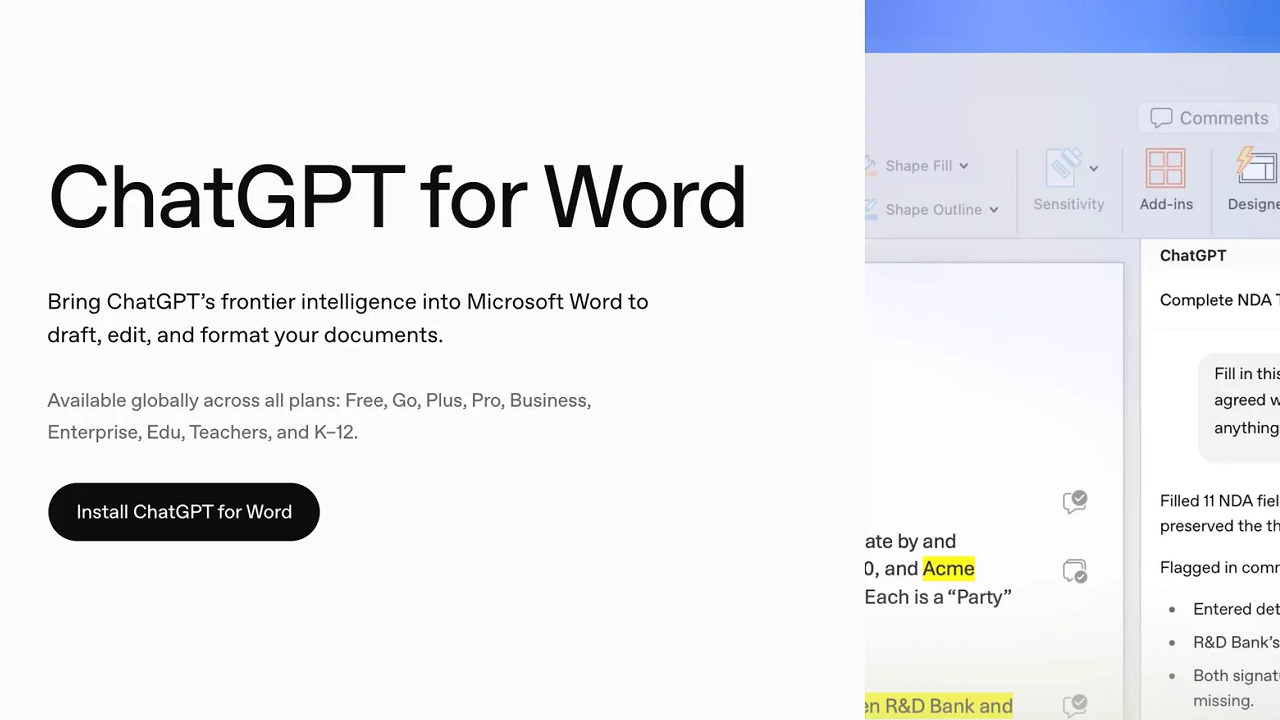

ChatGPT now lives inside Microsoft Word. OpenAI is rolling out ChatGPT for Word as a sidebar add-in, and it changes a small but real thing about drafting: you stop copy-pasting between a browser tab and your document. You ask, revise, and format without leaving the page you're working on.
The headline is that it ships on every ChatGPT plan, Free included, and it's part of the same Microsoft add-in that covers Excel and PowerPoint. If you write anything in Word for a living, even occasionally, this is worth ten minutes of setup.
What ChatGPT for Word Actually Is
The add-in opens ChatGPT in a sidebar inside Word. From there you can ask questions about the document you have open, revise highlighted text, or turn loose notes into a first draft. It reads the file in front of you, which is the whole point.
That last detail matters more than it sounds. Most AI writing tools sit in a separate window and know nothing about your document unless you paste it in. This one is grounded in the open file, so a request like "tighten this section" has something concrete to work on instead of a blank prompt.
It's built for drafting, editing, and formatting. Not for agentic research trips across the web. Know what you're getting.
What You Can Do With ChatGPT Word Integration
The feature list is practical rather than flashy, and most of it maps to tasks that eat a normal workday. Think about what a typical Wednesday actually looks like for someone who writes for a living: a memo nobody wants to write, a summary due before lunch, and a revision request that lands at four in the afternoon with a deadline attached.
So what does the sidebar actually do? Here's the short version.
- Draft a memo, proposal, or report from notes and source text.
- Summarize a document or write an executive summary.
- Revise a section for a different audience.
- Reorganize content and adjust headings, numbering, and formatting.
- Check a draft for unclear language or inconsistent terminology.
The pattern here is editing at the paragraph level. You select text and describe what you want changed, including a note about what should stay the same. That last instruction is the one people forget, and it's the difference between a clean revision and a rewrite you didn't ask for.
For bigger changes, OpenAI's own guidance is to ask ChatGPT to suggest an outline or explain its proposed edits before it touches the document. That's good advice for anyone who's watched an AI tool rearrange a carefully built draft without asking, and it costs you one extra message to stay in control of a document you'd rather not rebuild from scratch.
Codex and the Shared Usage Allowance
Here's the part that ties Word to the rest of OpenAI's stack. Word uses token-based pricing at API rates, and on plans that include Codex, the add-in draws from the same shared usage allowance. Using Word can eat into the budget you have for other premium features.
That's a design choice you'll feel if you push the tool hard. Heavy drafting sessions consume tokens, and tokens aren't free past your plan's limit. For light use, you'll never notice. For someone running long documents all day, watch the allowance.
The connection to Codex is about infrastructure, not about coding inside Word. OpenAI routes the same underlying model family through the add-in, which is why the formatting and editing feel consistent with the ChatGPT you already use. It's the same intelligence, pointed at a document instead of a chat box.
Installing the OpenAI Word Add-in
Installation runs through the Microsoft Marketplace, and it's about as short as these things get.
1. Open the ChatGPT listing in the Microsoft Marketplace and select Get it now.
2. Follow the install steps to add the add-in.
3. Open Microsoft Word and launch ChatGPT from the ribbon.
4. Sign in with your ChatGPT account, and pick your workspace if your org has one.
5. Open a document and type your request into the sidebar.
If ChatGPT doesn't show up, the culprit is usually permissions. Your organization may restrict which Microsoft 365 add-ins you can install, and Microsoft 365 admins have to allow the ChatGPT add-in before it appears for employees. Workspace admins can also toggle it on or off from the ChatGPT admin console. Starting October 1, 2026, it'll be enabled by default, so holdouts will see it without lifting a finger.
One thing to know before you start: conversations in the add-in are separate from your ChatGPT history. Memory and skills don't carry over, so you're starting fresh inside Word each time.
ChatGPT Word Features: Skills, Apps, and Context
Skills are where the tool gets genuinely useful for repeat work. A skill is a saved set of instructions you can reuse, so recurring jobs like memo drafting, formatting standards, or contract review run the same way every time. You set the rules once and apply them to the next document.
Supported apps bring outside information into the sidebar. Depending on your plan, workspace settings, and connection permissions, you can pull context from Outlook, SharePoint, Google Workspace, and Dropbox. That turns a vague prompt into a grounded one, because ChatGPT can reference the email thread or the shared file behind the task.
There's a limit to be honest about: plugins aren't supported in ChatGPT for Word yet. And the add-in can't reach other files on your computer. It works with the document you have open, full stop. If you need another file's contents, you paste the relevant text into your prompt.
Limitations and Accuracy Caveats
Complex formatting is the first thing to slip. Tables and charts may need manual adjustment after ChatGPT touches them, so don't expect a polished layout to survive an edit untouched.
Accuracy is the bigger caveat. ChatGPT can make mistakes and change content you meant to keep, which is why saving a copy before a substantial revision is basic hygiene. Check facts, figures, and citations before anything leaves your desk. The tool is fast, and speed is exactly why you verify.
Privacy follows your ChatGPT plan and data controls. In Business, Enterprise, and Edu workspaces, inputs and outputs aren't used to train OpenAI's models by default. On personal plans, review the data controls before feeding in anything you wouldn't want retained.
Who Should Install ChatGPT for Word
The people who gain most already write inside Word every day. If your job is memos, proposals, reports, or contracts, the sidebar removes a real friction: the tab-switching tax that eats minutes you never get back.
Casual users get less. If you open Word twice a month, the add-in is a convenience, not a transformation, and the token usage is a non-issue either way. Students and freelancers on Free land somewhere in the middle. The tool costs nothing to try, and the ten-minute setup is the only investment.
The folks who should pause are heavy users on plans where Word competes with Codex for the same allowance. If your tokens are already tight, adding a document tool to the pile changes the math. Test it on one real document first, then decide.
Bottom Line
ChatGPT for Word does one thing well: it puts an AI assistant where the writing actually happens. Drafting, revising, and formatting stay inside the document, and the shared add-in keeps the experience consistent across Word, Excel, and PowerPoint.
It isn't a replacement for judgment. Formatting slips, it can overreach on edits, and it draws from a shared token pool. But for the core job of turning rough notes into a clean draft, it earns its place in the ribbon. Install it on a plan you already pay for, run it against a document you know well, and see where it saves you time. If Word is where your work lives, this is the update to make first.
 NEWS
NEWS REVIEWS
 HOWTO
HOWTO