Scan Date:Sep 22, 2025
Show More


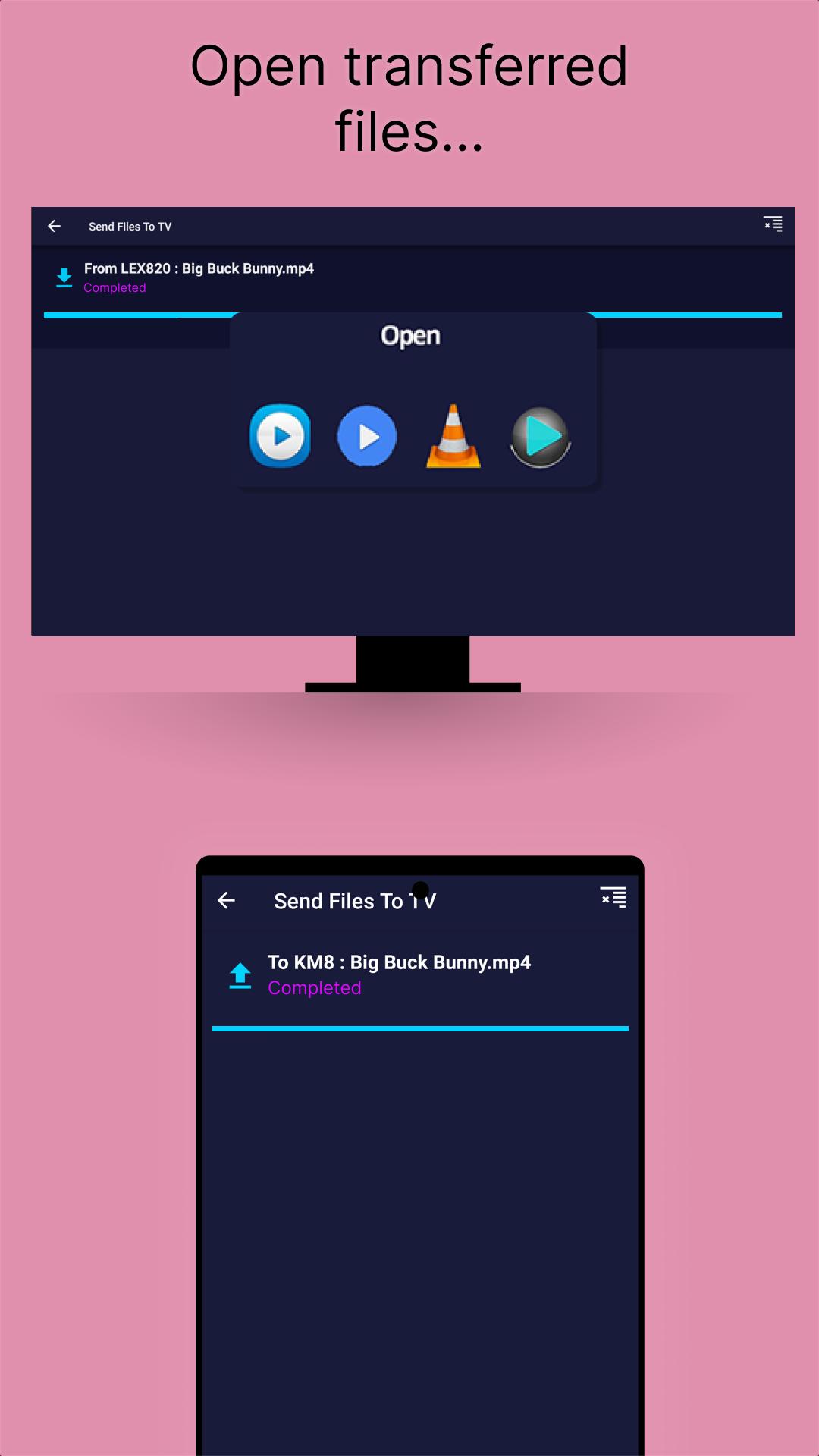
Send files to TV helps when you want to move photos, videos, music, APKs, and documents around your home or office without cables. The app focuses on local transfers between Android phones, tablets, Android TV or Google TV devices, and desktop computers using your existing network. It works with a simple setup so you can keep files on your devices and avoid using the Internet. For a quick start on Android, you can look for Send files to TV APK to install the app easily.
Private local transfers
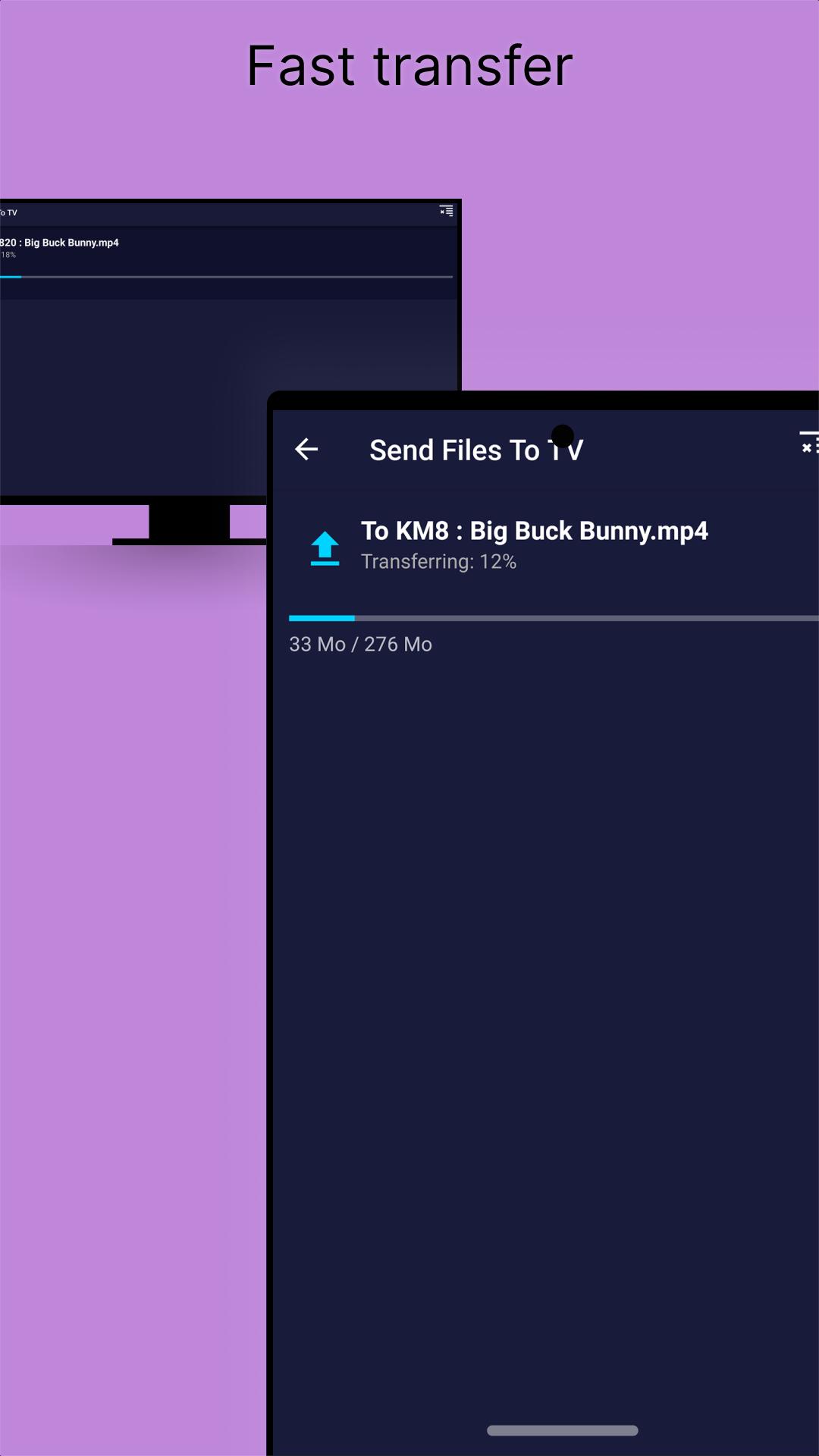
Send files to TV moves data only over your local network, not through the cloud. This keeps files on your devices and removes the need for cables. For large movies or folders of photos, it is typically faster than Bluetooth because it uses your Wi‑Fi or LAN connection.
Automatic device discovery
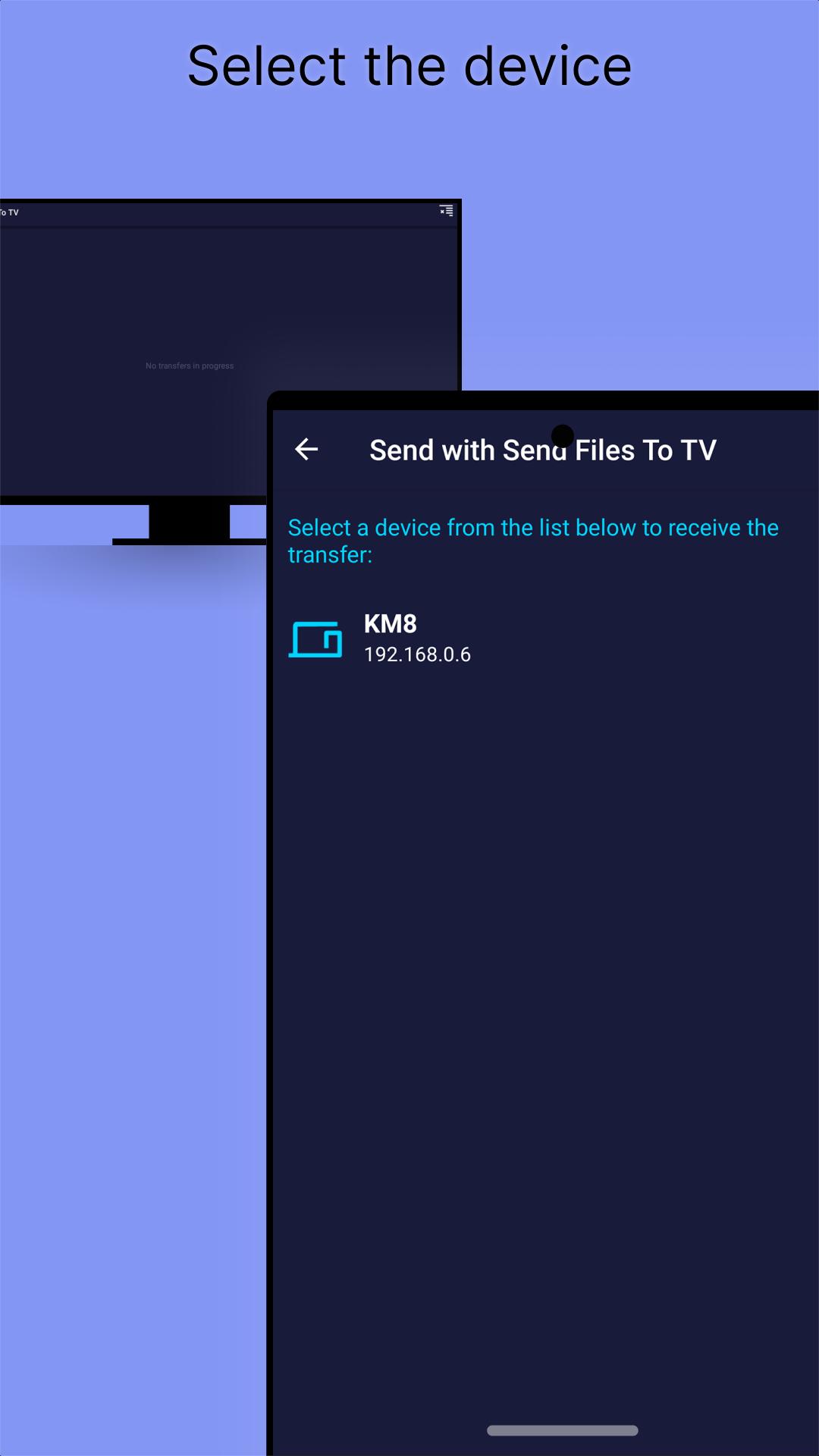
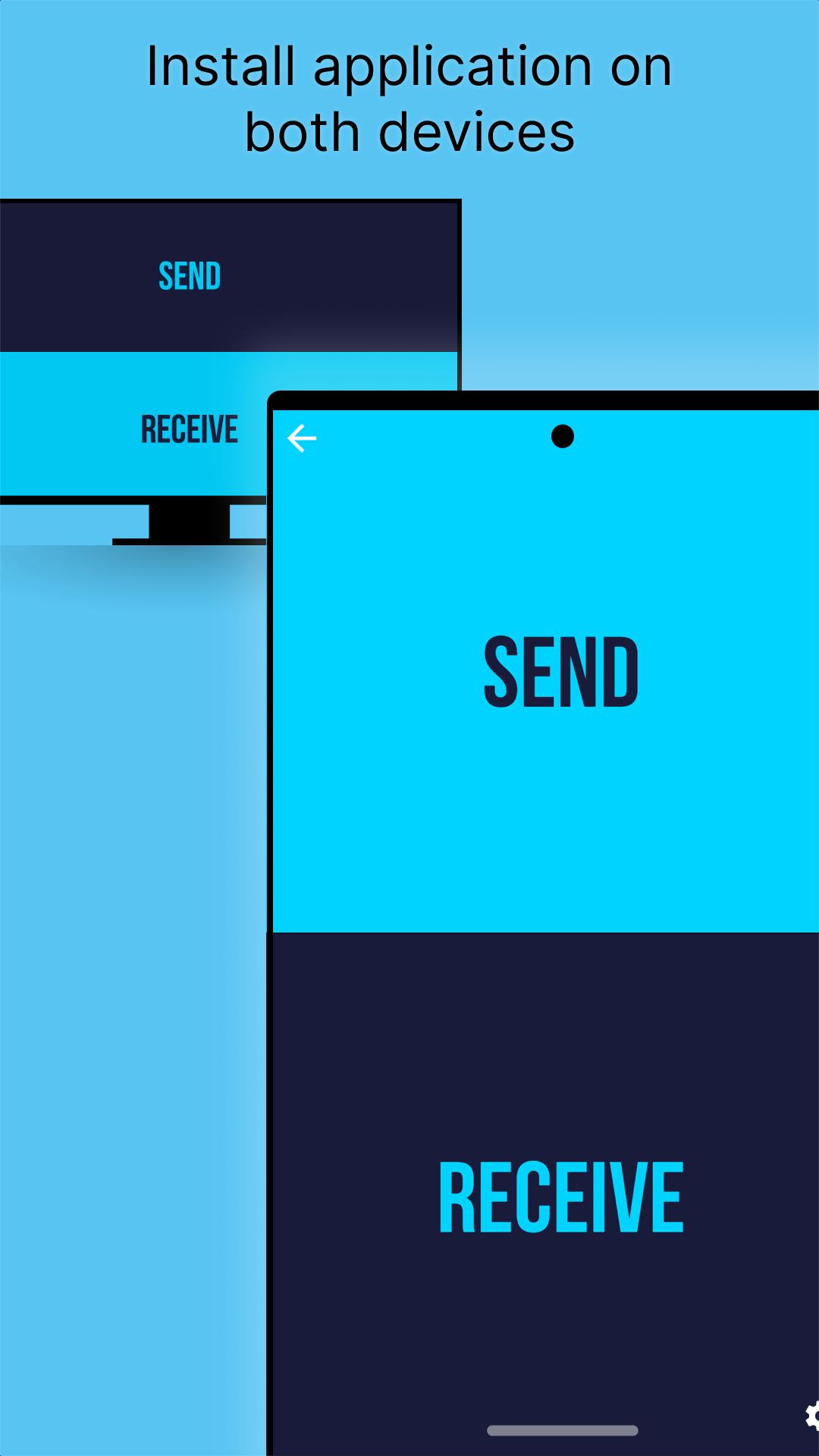
The app searches for nearby devices running Send files to TV on the same network and lists them for quick selection. You can tap Send or Receive and start a transfer with one tap. This reduces setup time and helps you focus on choosing the right files.
Cross platform support
Send files to TV works with Android phones and tablets as well as Android TV and Google TV. It also offers desktop companions for Windows, macOS, and Linux, which helps when you want to move large media libraries from a computer to a TV. This flexibility makes it useful in homes, schools, and offices where different devices are used together.
Built in file explorer and save controls
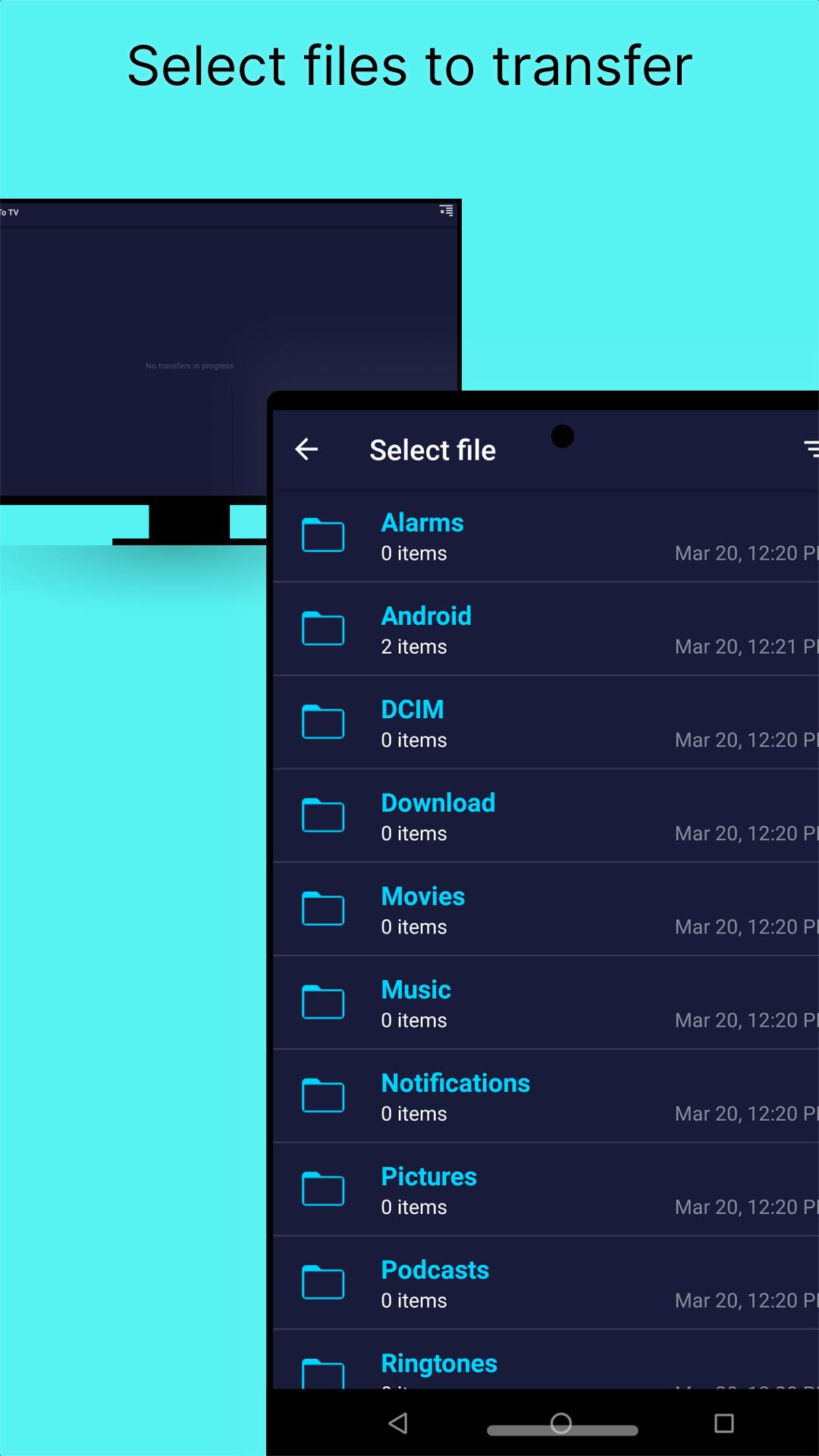
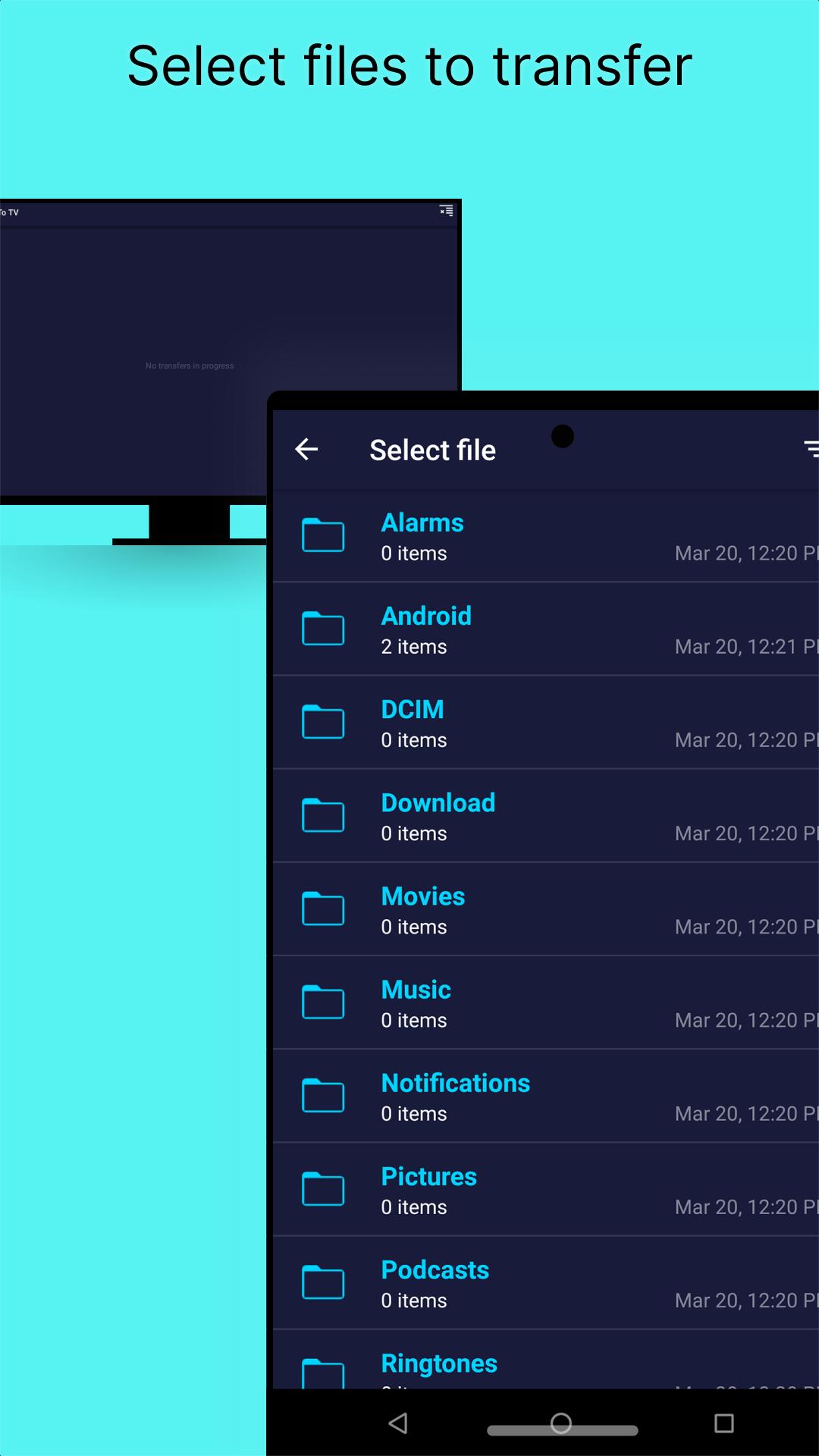
The built in file browser shows your folders with image previews so you can confirm what you are sending. You can change the receive folder in Settings to keep downloads organized and easy to find later. This helps avoid misplaced files and saves time when moving many items.
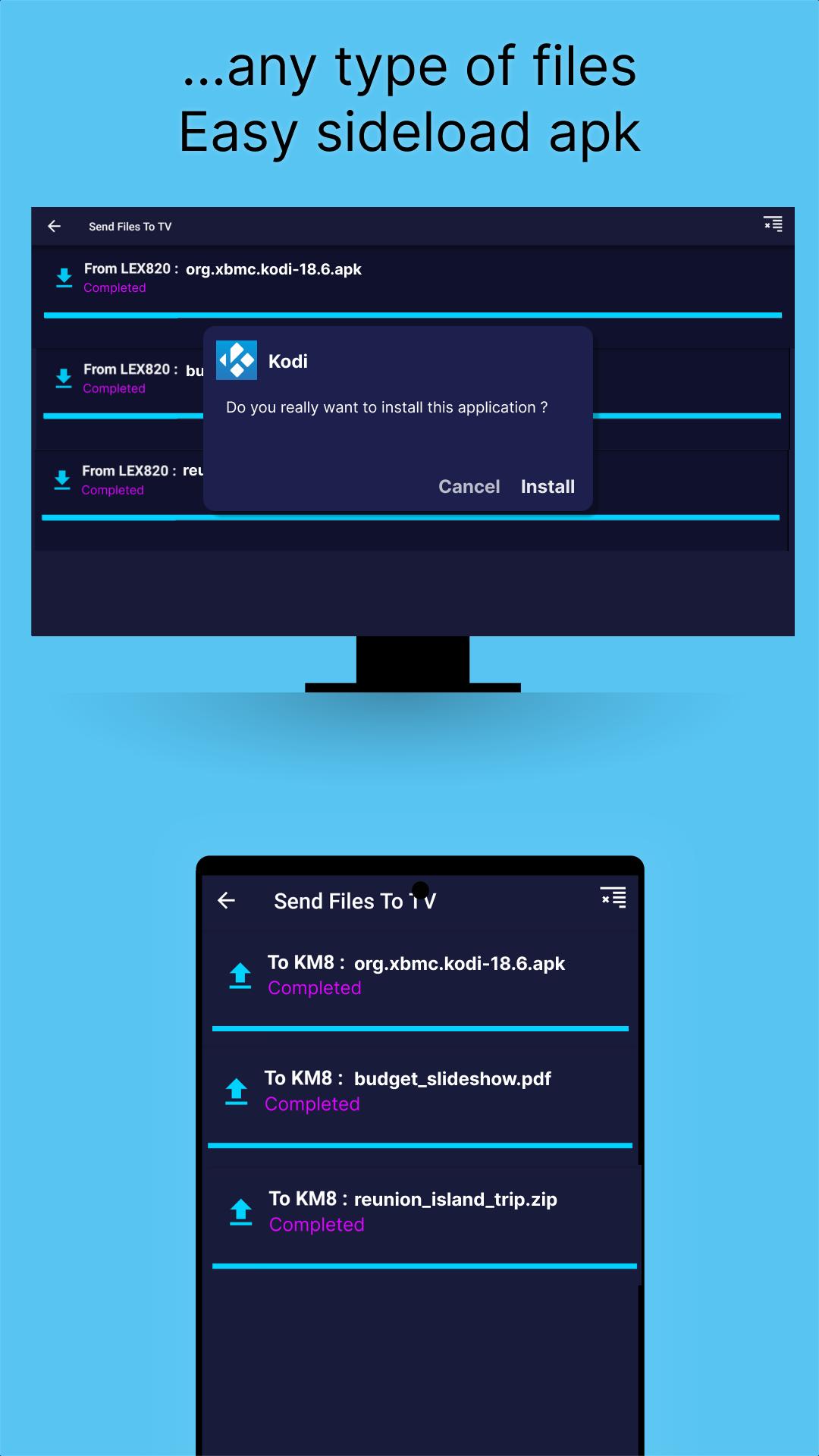
Sideload APKs to your TV
Send files to TV lets you send APK files from your phone or computer to your Android TV or Google TV. You can move the installer quickly to your TV and proceed with installation there. This is helpful when you need apps that are not available on your TV by default.
Install and open Send files to TV on both devices and connect them to the same Wi‑Fi or LAN. Guest network isolation, active VPNs, or strict firewalls can block discovery, so disable or adjust them if devices do not appear. For desktop use, allow the app through your firewall, and in some cases make sure UDP or TCP port 45001 is open so discovery and transfers work correctly.
If no Wi‑Fi is available, create a portable hotspot so both devices share the same network.
For faster speeds, keep devices near the router and avoid sending to multiple devices at once.
To move an entire folder, zip the folder first or multi select the files inside it.
Use the desktop companions on Windows, macOS, or Linux to move large libraries to a TV efficiently.
Set or check the receive folder in Settings so new files are easy to locate after a transfer.
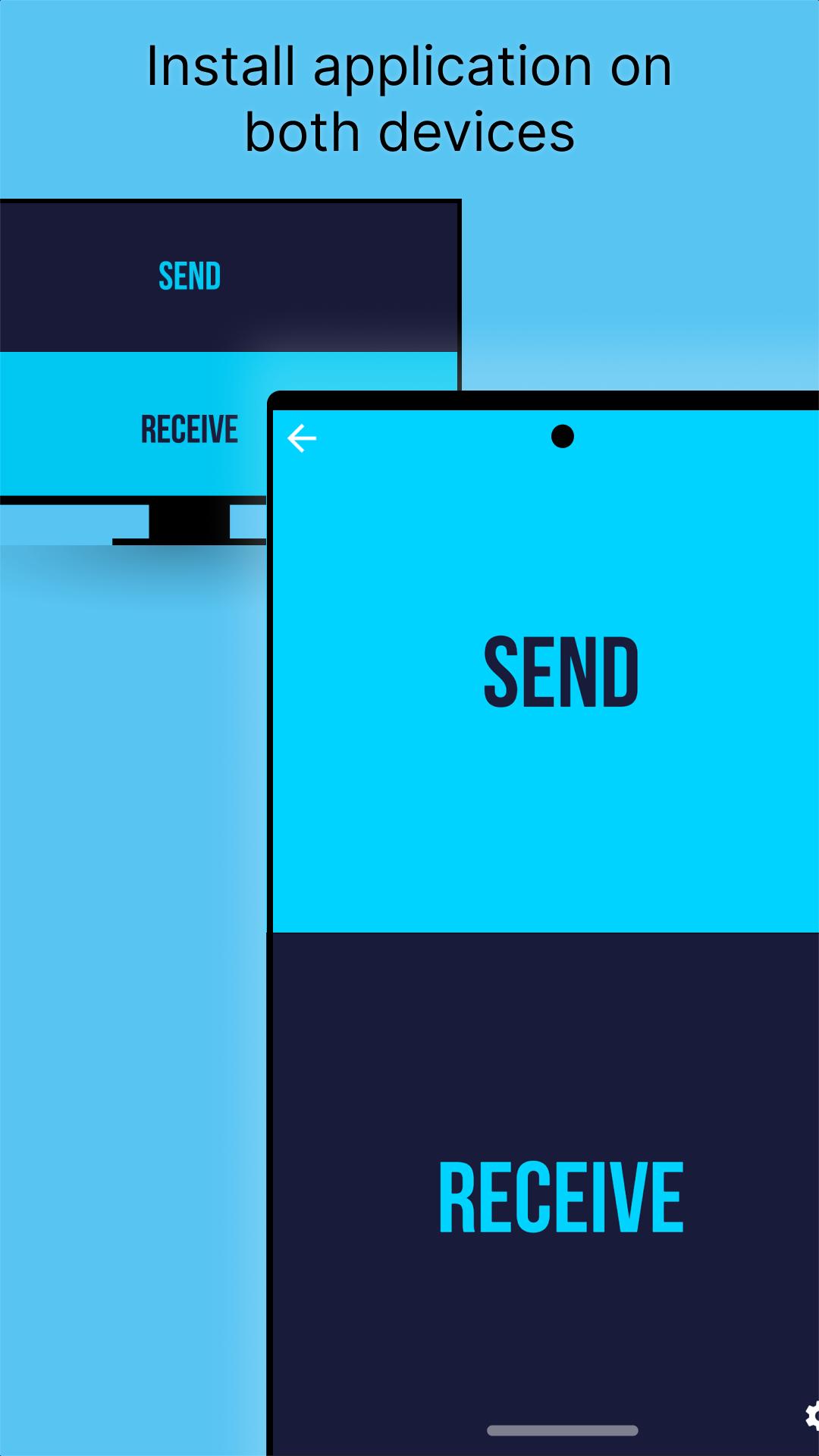
Getting started is straightforward on Android. For best compatibility, use the Send files to TV latest version on both devices. The steps below describe a typical phone to TV transfer over your local network.
Connect your phone and TV to the same Wi‑Fi or LAN and open Send files to TV on both devices.
On your phone, grant storage permission if asked, then open Settings to choose your receive folder if you plan to receive files later.
Tap Send on your phone, browse with the file explorer, and select the items to move. Long press to multi select, or zip a folder first if you need to send it as one file.
Choose your TV from the discovered devices list. On the TV, select Receive and confirm the incoming transfer if prompted.
Watch the progress indicator until it completes. If your PC or TV is not discovered, allow the app through the firewall and check that UDP or TCP port 45001 is open, then try again.
Send files to TV focuses on moving files quickly and privately across your own network. If you need simple transfers between phone, TV, and desktop without cables or cloud services, download Send files to TV and start sending your media and documents.
For official resources and support, visit the developer site below.
Website: https://sendfilestotv.app/
Latest Version
1.4.22Uploaded by
Irawanan Nan
Requires Android
Android 6.0+
Category
Free Tools AppContent Rating
Everyone
Security Report
Report
Flag as inappropriateLast updated on Sep 22, 2025
Transfer service auto stop if inactive
Fix notification permission
Fix send button
Fix Android 15+ device discovery foreground service
Improve file explorer performance
Improv transfer performance
Fix minor bugs

APKPure - A multi-platform app store primarily focused on Android, providing extensive app-related content. Discover the app you want easier, faster, and safer, with quick and efficient downloads and installations.