Scan Date:Aug 4, 2026
Show More

This SmartWatch sync app for Android and Bluetooth notifier lets you bind your watch to your Android phone over Bluetooth (BT) and shows incoming phone notifications on the smartwatch screen.
With the Smart watch sync app, your gadget will gain even more features.
Stay connected: get message, email and call notifications on your watch — WhatsApp, SMS, Messenger and the apps you choose.
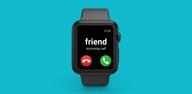
Notifications from your phone appear on the smartwatch screen, so you can see a message at a glance. This is useful when you are on a run or busy with something else and it is inconvenient to take out your smartphone.
Made for Bluetooth smartwatches: connect your smartwatch to your Android phone — Wear OS and other Bluetooth models, including generic watches that come without their own app.
Choose how alerts look and feel: pick a colorful notification theme and a vibration pattern.
More control:
• Choose which apps and instant messengers send notifications to your watch.
• Set quiet hours with Do Not Disturb mode.
• Send a test message to check the connection.
Installation and sync guide:
(For an extended step-by-step guide with sketched illustrations, visit: qwegnumor.com/Smartwatchsync)
1. Install the Smart watch sync & BT notifier (Wear OS) from Google Play on your Android smartphone and, if you use a Wear OS watch, on your SmartWatch too.
2. Open BT notifier sync on your smartwatch. Select “Turn on Bluetooth.” Next, make the watch discoverable by tapping the “Discoverable” button. (If your watch has no app, just turn on Bluetooth on it and make it visible to other devices.)
3. Open the Smart Sync Notifier app on your mobile. Tap Enable Permissions to let the Notifier app access your notifications. On the phone’s notification settings screen, turn on the toggle switch for the Sync app. Then press the “Back” button to return to the BT notifier app.
4. Select “Connect device,” then “Enable BT.”
5. Find the name of the smartwatch in the BT list and connect. Or tap “Scan your watch” on your phone and scan the QR code on your watch.
6. Press “Pair / OK” on both devices and, if necessary, confirm the pairing (press “OK” / “Allow”).
Done! Your smartphone and your watch are now paired!
Possible problems with Bluetooth sync and their solutions:
• Place the devices you are trying to sync as close to each other as possible. Pairing errors are most often caused by distance.
• Disconnect and reconnect devices. A quick connection reset can sometimes fix the error.
• Check whether your smartwatch is already connected to another Android device. Some smartwatches try to connect to the last phone or earphones they were previously paired with; you may need to change the settings manually.
• Check the battery level on both paired devices. Some smart devices have built-in power management that disables BT if the battery is low: make sure they have enough battery before use.
Sync two devices for a more convenient everyday life with the Smart Watch sync app for Android and Bluetooth notifier.
Latest Version
428.0Uploaded by
Kenny Rodriguez
Requires Android
Android 7.0+
Category
Free Communication AppContent Rating
Everyone
Security Report
Report
Flag as inappropriateLast updated on Aug 4, 2026
- Minor fix



APKPure - A multi-platform app store primarily focused on Android, providing extensive app-related content. Discover the app you want easier, faster, and safer, with quick and efficient downloads and installations.