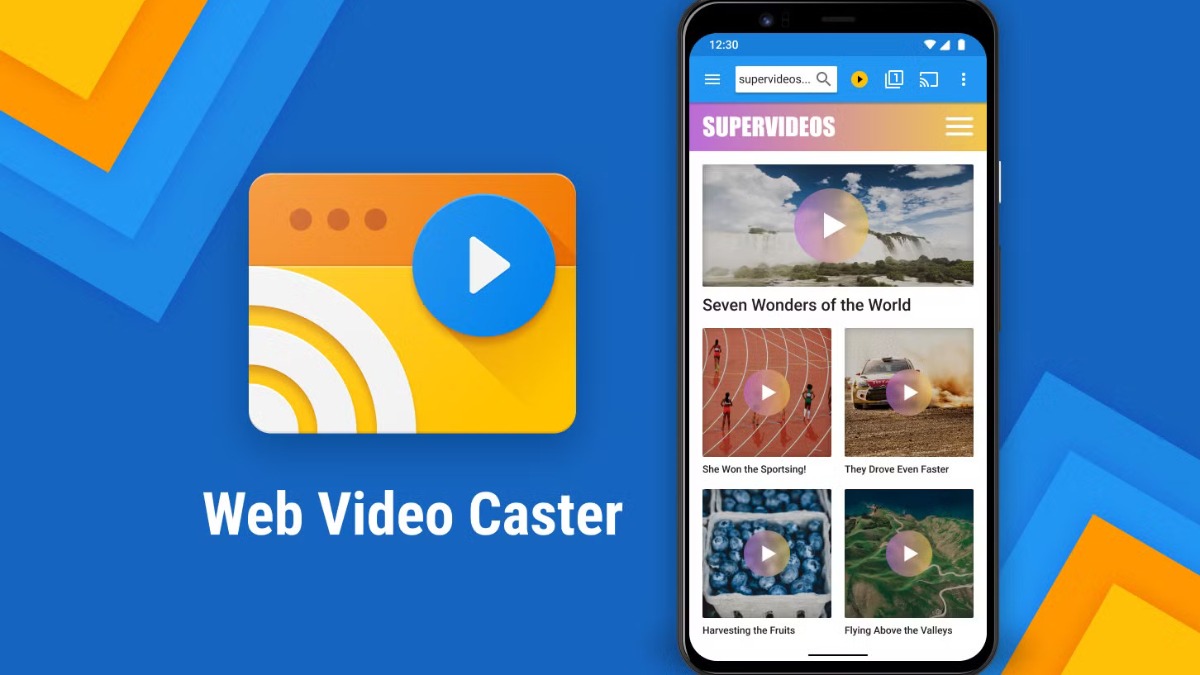
Web Video Cast | Browser to TV helps when you find a video or audio source on your phone but prefer to watch or listen through a TV. The app uses a built-in browser to find supported media and send it to a selected receiver. This makes it useful for users who want to browse on Android while keeping playback on a larger screen. Before choosing to download Web Video Cast | Browser to TV, check that your TV or streaming device can play the media format you select.
Cast media links instead of mirroring the screen
Web Video Cast | Browser to TV sends the media URL to the receiver, rather than copying your entire phone screen or browser tab. As a result, the TV plays the selected video directly when the source and receiver support it. This is different from screen mirroring, where everything visible on the phone is shown on the TV.
Browse for supported online videos
You can use the app’s built in browser to open websites and detect compatible HTML5 video and MP4 media. It can be used with online movies, TV shows, live news, sports streams, and IPTV sources. When a page contains supported media, you can select a connected receiver for playback.
Send videos, photos, and music from your phone
In addition to web content, Web Video Cast | Browser to TV can cast files stored on your Android device. This includes local videos, photos, music, and other audio files. It gives you a way to display personal media on a compatible TV without first uploading those files to a website.
Connect to common TV and streaming devices
The app works with Chromecast, Roku, DLNA devices, Amazon Fire TV, and Fire TV Stick receivers. It also supports compatible LG, Samsung, and Sony Smart TVs, plus PlayStation 4 through its browser. Available connection options depend on the devices detected on the same network.
Use subtitles and playback controls
Web Video Cast | Browser to TV can detect subtitles offered on supported web pages. You may also load your own subtitle file or search through OpenSubtitles. Premium options add ad removal, bookmarks, homepage settings, viewing history, a playback queue, home screen shortcuts, and a list of frequently visited sites.
Your receiving TV or streaming device must support the chosen video or audio format. Web Video Cast | Browser to TV does not decode or convert media into another format, so a file or stream that a receiver cannot play may fail even when the connection works correctly.
Buffering and playback errors can also come from the website or media provider. This can happen when a live stream has heavy traffic or when its server responds slowly. If a source does not load on the TV, try another supported source or check whether the provider is currently available.
Web Video Cast | Browser to TV uses your Android phone to locate media and choose where it should play. If you install the Web Video Cast | Browser to TV APK, connect your phone and receiver to the same network before starting. Then select supported web or local media from the app.
Open the app and select the receiver icon to find your Chromecast, Roku, Fire TV, DLNA device, or compatible smart TV.
Choose the receiver you want to use, then wait until the app shows that it is connected.
Open a website in the built-in browser, or choose a video, photo, music file, or other audio file from your phone.
When the app detects supported media, select the video or audio item and send it to the connected receiver.
If subtitles are available, choose detected subtitles, add a subtitle file, or search OpenSubtitles before or during playback.
Web Video Cast | Browser to TV is designed for sending supported web and local media from an Android phone to a compatible receiver. Download Web Video Cast | Browser to TV APK latest version for current casting and receiver support.
Official information is available from the developer:
Website: https://www.webvideocaster.com/
Latest Version
6.0.3Uploaded by
Marvin Xavier Perez Gusman
Requires Android
Android 10.0+
Category
Free Video Players & Editors AppContent Rating
Everyone
Report
Flag as inappropriateLast updated on Sep 26, 2026
Added an option to use original subtitle styles.
Fixed subtitle font size controls.
Improved subtitle format detection.
Improved DLNA and Roku device discovery.
Added bulk deletion for History, Bookmarks, and Most Visited.
Fixed HLS/DASH downloads as MP4 on older Android versions.
Reduced memory usage and improved stability.
Other bug fixes.



APKPure - A multi-platform app store primarily focused on Android, providing extensive app-related content. Discover the app you want easier, faster, and safer, with quick and efficient downloads and installations.