Gemini Voice Chat Guide: How to Use Google AI Voice Features

2026-08-04
Use voice commands, enjoy voice‑to‑voice dialogue, and make the most of Google’s AI‑powered voice assistant.
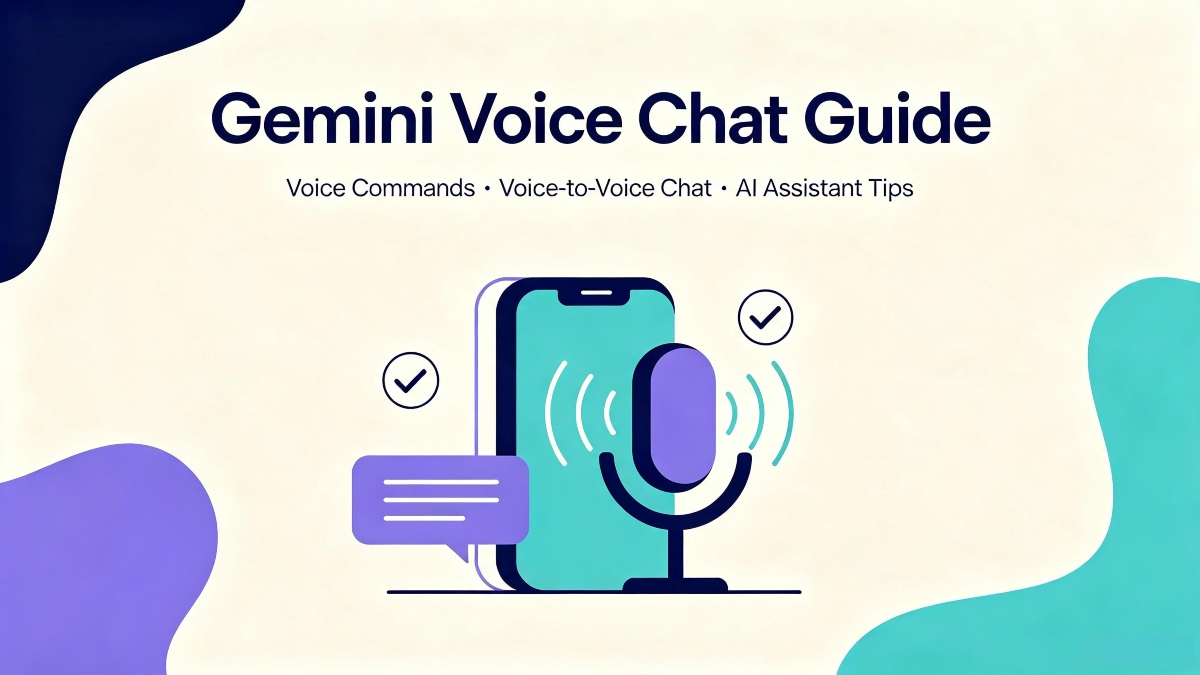
Gemini voice chat lets you talk to Google's AI assistant using your voice and hear spoken responses back. On Android, this replaces the Google Assistant voice experience with a more capable AI. Here's how to set up and use Gemini's voice features, plus tips for getting better results from voice conversations.
How to Enable Gemini Voice
- On Android, Gemini voice works automatically if you've set Gemini as your default assistant. Say "Hey Google" or long-press the home button, and Gemini listens. If you haven't switched from Google Assistant, you can still use voice inside the Gemini app by tapping the microphone button in the text input bar.
- On iOS, open the Gemini app and tap the microphone button. On the web, the microphone button is available in the input bar, though browser permissions may need to be granted.
The first time you use voice, Gemini asks for microphone permission. Grant it. The permission can be revoked later in your phone's app settings.
Basic Voice Commands
You can use Gemini voice for all the same tasks as text. Ask questions aloud. "What's the capital of Bhutan?" Request information. "How many ounces in a cup?" Set reminders and alarms. Ask for directions. The voice interaction flows like a conversation. Gemini responds in a spoken voice, and you can reply without touching your phone.
Voice is more natural for quick, simple queries than for complex, multi-part requests. "What's the weather this weekend?" works better spoken than "Generate a Python function that takes a list of dictionaries, filters by a date range, groups by category, and calculates the sum of values for each group."
Voice Chat Features
On Android, Gemini voice can handle on-device commands without sending data to the cloud. "Turn on the living room lights," "Set a timer for 10 minutes," and "Send a text to Mom" process locally using Gemini Nano. This is faster and more private than cloud-based processing.
Live voice mode lets you talk to Gemini with your screen off. This works like a phone call. You speak, Gemini responds, and the conversation continues without you needing to look at your phone. Useful for driving, cooking, or when your hands are occupied.
Multi-turn voice conversations maintain context across exchanges. You can ask "who directed Inception," hear the answer, then follow up with "what else did he direct?" and Gemini knows "he" refers to Christopher Nolan.
Tips for Better Voice Interactions
- Speak clearly and at a natural pace. Gemini's speech recognition is good, but mumbling or speaking too fast reduces accuracy. Pause briefly between sentences so the AI can process your speech in natural chunks rather than as a continuous stream.
- Be direct with commands. "Set an alarm for 7 AM" works better than "I need to wake up early tomorrow, can you make sure I don't oversleep?" Voice assistants work best with clear, actionable instructions.
- For complex tasks, switch to text. Voice is great for quick questions and device commands. If you need to explain a multi-step problem or provide detailed instructions, typing gives you more precision and avoids transcription errors.
- Use voice in quiet environments. Gemini's speech recognition handles moderate background noise, but loud environments like a busy street or a room with a TV playing will cause transcription errors.
Gemini Voice vs Google Assistant Voice
Gemini Voice is smarter but sometimes slower than Google Assistant for simple commands. "Set a timer" on Google Assistant happens almost instantly. On Gemini, the same command might take an extra second as the AI processes the request through its language model rather than through a simple command parser.
- For complex queries, Gemini voice is dramatically better. Google Assistant would fall back to a web search for anything beyond basic commands. Gemini gives you a full AI-generated response with context, follow-up capability, and the ability to handle multi-step reasoning.
- If speed matters more than capability for the way you use voice commands, you can keep Google Assistant as your default and use Gemini in the app when you need smarter responses. The choice isn't permanent. You can switch anytime in settings.

Google Gemini is a productivity and creativity app that supports live conversations and multimodal creation.
 NEWS
NEWS REVIEWS
 HOWTO
HOWTO