Package Name:com.accarunit.slowmotion
SHA-256:b5a0b5def88ccc62adbc1f8fe78ac07fa90becfe8cf2ab33a6eff10e3af0faca
Show More


Time Cut : Smooth Slow Motion is intended for people who want to rework ordinary phone footage into slower, faster, or more stylized video edits. It can suit dance recordings, sports clips, game replays, travel footage, and short videos for social posts. The app focuses on making movement appear more continuous when the original recording has limited frames. If this matches your editing needs, you can download Time Cut : Smooth Slow Motion to work with existing videos on an Android phone.
Slow down or speed up clips
Time Cut : Smooth Slow Motion lets you reduce playback speed to 0.1x or increase it to 10x in the standard speed mode. This can help you inspect a jump, dance move, or game action in more detail. You can also speed up longer recordings to create timelapse or hyperlapse style videos.
Create velocity edits
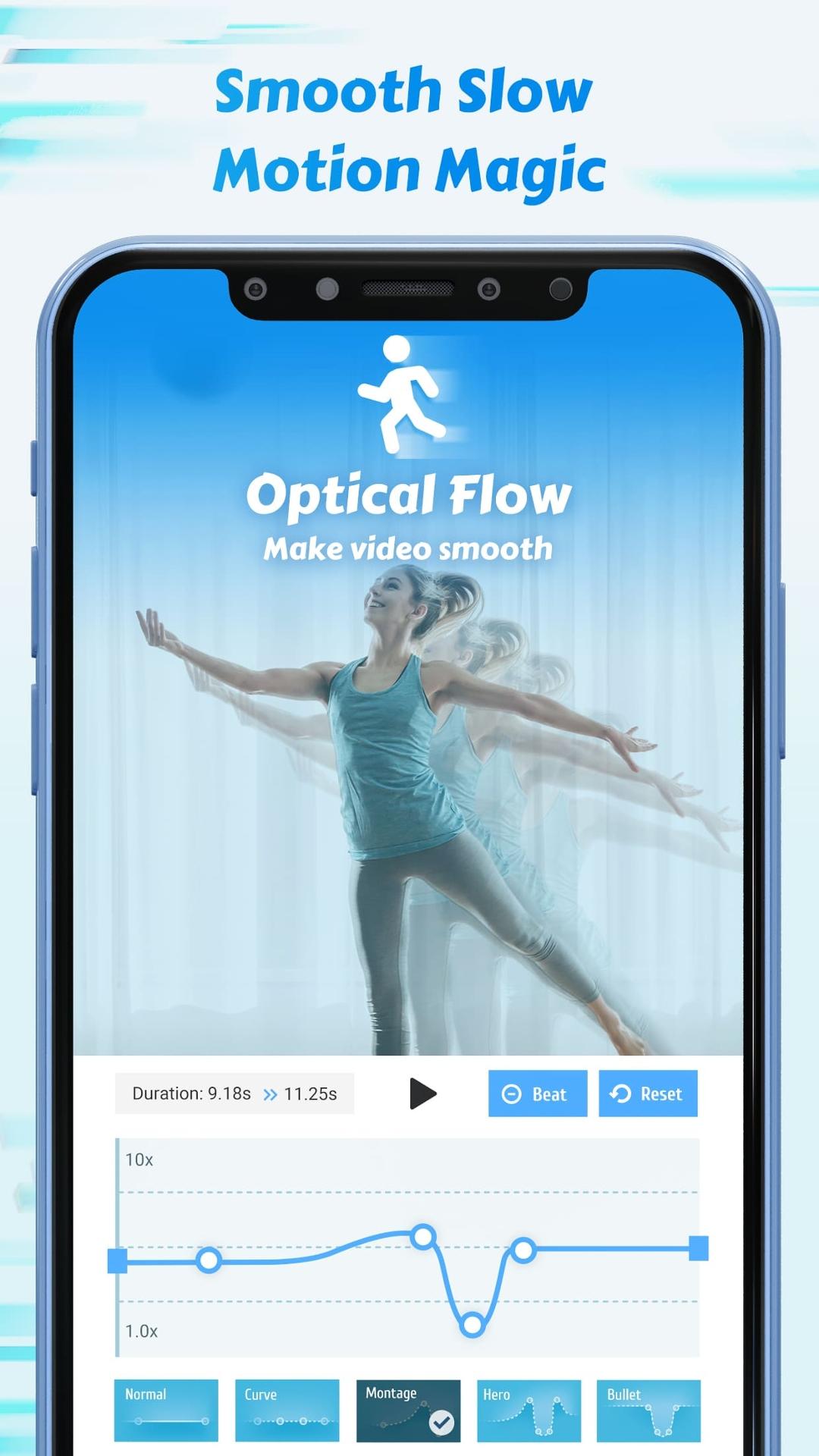
You can use custom speed curves to change the pace at different points in one clip. Speed ramp presets provide another way to move between slow and fast sections. In addition, the app allows time freeze moments, which can hold a selected point in the video before playback continues.
Generate frames for smoother motion
Time Cut : Smooth Slow Motion uses Optical Flow motion interpolation and the RIFE model to generate extra frames between existing ones. This frame interpolation is designed to reduce visible stutter when slowing down normal footage, including 30 fps recordings. Results can vary with the movement and quality of the source video.
Add motion blur effects
The app includes Optical Flow-based motion blur effects for clips with changing speed. Directional blur and lens blur are also available for different movement looks. These controls can be useful when a velocity edit needs motion blur effects around fast actions or transitions.
Choose frame rate and finishing effects
You can convert footage to 60, 120, or 240 fps when smoother playback is the priority. Alternatively, 24 or 30 fps export can create smaller files for sharing. Time Cut : Smooth Slow Motion also includes an AI HD quality enhancer, along with filters, highlights, zoom, glitter, flash effects, and music options for finishing an edit.
The source clip affects how far you can slow it down. Footage with camera shake, low light, very fast movement, or complex motion may show more artifacts at extreme slow speeds. For these clips, using a less dramatic slowdown can produce a clearer result.
Higher frame rate exports can be useful when smooth playback matters most, while 24 or 30 fps exports can be more practical when a smaller shareable file is needed. Basic speed controls differ from some advanced options. AI HD enhancement, full resolution export, higher quality slow motion processing, and certain blur options may require premium access.
Start with a clip that clearly shows the moment you want to change, such as a dance move or sports action. Time Cut : Smooth Slow Motion APK provides speed controls and export settings within the editing process. Choose a moderate setting first, then review the motion before making greater changes.
Open the app and select a video from your Android device to begin a new edit.
Choose the normal speed mode if you want to slow the whole clip down or speed it up, then set the playback rate.
For a velocity edit, add speed changes along the clip and adjust the curve or preset until the timing fits the selected moment.
If needed, place a time freeze point, then add motion blur, filters, effects, zoom, or music after the speed changes are set.
Preview the finished video and select an export frame rate. Use 60, 120, or 240 fps for smoother playback, or choose 24 or 30 fps when file size matters more.
Time Cut : Smooth Slow Motion combines speed adjustment, velocity editing, frame generation, blur, and export controls in one Android editor. Download Time Cut : Smooth Slow Motion APK latest version if you need its current editing tools and available output options.
Official information is available through the developer’s listed channels:
Website: https://www.tribieforum.com/
Support email: erpengchang@163.com
Latest Version
2.6.0Uploaded by
منتظر القيسي
Requires Android
Android 5.0+
Category
Free Photography AppContent Rating
Teen · Suggestive Themes
Security Report
Check Now
Report
Flag as inappropriateLast updated on Sep 12, 2022
Major Update: Add de-duplication for smoother slowmos!
Try it in Speed Adjustment and Deep-learning double smoother section.






APKPure - A multi-platform app store primarily focused on Android, providing extensive app-related content. Discover the app you want easier, faster, and safer, with quick and efficient downloads and installations.