How to Install the Thaumaturge Mod in Minecraft with NeoForge

2026-10-09
This guide walks through installing NeoForge 26.1.2 and the Thaumaturge mod, from choosing the right jar to fixing a failed launch, so you can get the Thaumcraft successor running.
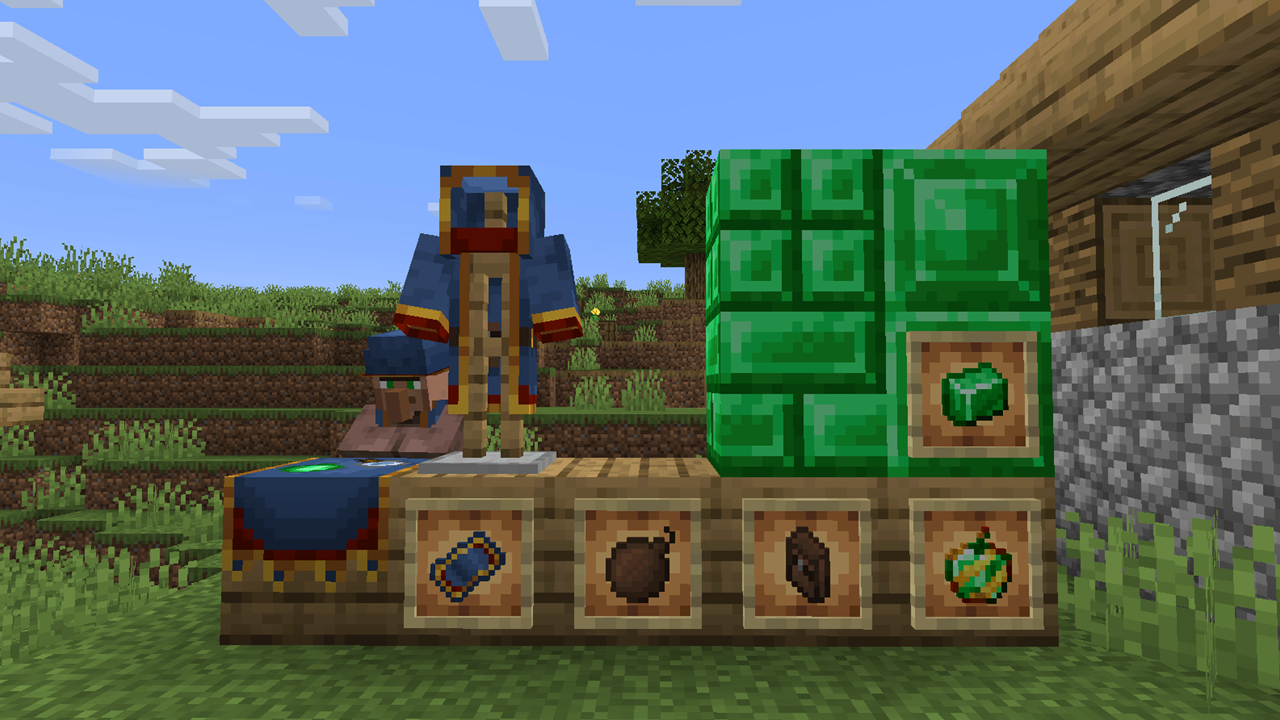
The Thaumaturge mod is the Thaumcraft successor built for modern NeoForge, and installing it takes a little more care than dropping a file into a folder. You need the right loader for the right game version, the right jar for that loader, and a couple of housekeeping steps first. Do it in order and it's straightforward.
This guide covers the full install on Java Edition, from picking your version to fixing a launch that refuses to start. If you're coming from a legacy Thaumcraft pack, the process will feel familiar, just with NeoForge in place of old Forge.
What You Need Before Installing Thaumaturge
Three things have to line up before you touch anything: the Minecraft version, the NeoForge loader for that version, and the Thaumaturge jar that matches both. Thaumaturge currently targets NeoForge 26.1.2, with the newest build shipping as jar version 1.0.2. Guess wrong on any of the three and the game won't start.
You also need Java Edition. Thaumaturge is a Java mod, so the Bedrock and mobile editions don't run it. If you play Minecraft on a phone, that version is a different edition entirely and won't take NeoForge mods.
Finally, decide if you're adding Thaumaturge to an existing pack or building fresh. Think of this as a NeoForge mod install guide with two paths: if your pack already sits on 26.1.2 NeoForge, you're most of the way there. If it's on an older anchor like 1.21.1, you'll be moving the whole thing forward, and that's a bigger job than adding one mod.
Step 1: Back Up Your Minecraft World
Before any mod goes in, copy your world. Mods write data into the world, and if you add or remove them mid-game, a save can end up unloadable. A backup is the only clean undo, and it takes seconds.
- Close Minecraft completely.
- Open your saves folder and find the world you plan to play.
- Copy the whole world folder somewhere outside your Minecraft directory.
- Name the copy with today's date so you know which one is current.
Do this every time before a mod change. When something breaks, and with modding it sometimes does, you restore the copy and you're back where you started.
Step 2: Install NeoForge 26.1.2 for Minecraft
NeoForge is the loader Thaumaturge is built for. Without it, the mod has no framework to run on.
- Download the NeoForge installer for your Minecraft version. For the current Thaumaturge build, that's 26.1.2.
- Run the installer and choose Install client.
- Let it finish, then check that a NeoForge profile appears in your launcher.
- Launch the game once with that profile, before adding any mods, and confirm it reaches the main menu.
- Close the game.
That clean launch is your baseline. If NeoForge alone won't run, no mod will save it, so fix the loader first. Confirm the version number in the launcher profile matches the Minecraft version you want.
Step 3: Find the Right Thaumaturge Mod Jar
Getting the jar right is where most installs go wrong. Thaumaturge ships a specific file per version, and the filename tells you what it's for: the current one reads as version 1.0.2 for NeoForge 26.1.2.
- Go to the mod's page on an established community host.
- Open the Files tab and find the release that lists NeoForge 26.1.2.
- Download the jar, not a source zip or an unrelated add-on.
- Note the version string, since you'll want to check it after each future update.
Only grab the loader type you're running. A file labeled for a different loader won't work, and a file for a different Minecraft version will either refuse to load or crash on startup. Read the label before you download.
Step 4: Add the Thaumaturge Jar to Your Mods Folder
With the loader in place, the mod itself is the easy part.
- Open your Minecraft directory and find the mods folder. Create it if it doesn't exist.
- Copy the Thaumaturge jar into that folder.
- Don't rename the jar. Its filename carries the version info the launcher reads.
- If you're adding other 26.1.2 mods, place them in the same folder.
- Launch the game with the NeoForge profile.
The mod is now installed. If the game launches and Thaumaturge shows in your mod list, the file is in the right place and the loader accepted it.
Step 5: Launch and Verify Thaumaturge Loads
A successful launch is the only proof the install worked. Watch the load to confirm it.
- Start the game with the NeoForge profile and your world.
- Let the load finish and check the mod list for Thaumaturge.
- Confirm the classic systems are present. Nodes, Wands, and the Research minigame should all be there if the mod loaded correctly.
- Play for a few minutes and confirm nothing errors out during world generation.
If the mod list doesn't show it, the jar is in the wrong folder or built for a different version. If it shows but the game crashes when the world loads, you're likely facing a version mismatch or a mod conflict.
Tips for a Stable Thaumaturge Mod Install
These habits keep the install healthy across updates.
- Keep the loader and mod on the same version line. When Minecraft or NeoForge moves, the mod has to follow, or you'll crash on launch.
- Add mods one at a time. If two go in together and the game breaks, you've doubled the detective work.
- Download only from established community hosts, and scan every file. Anything promising free items or account perks is a red flag.
- Keep your world backup current, especially before adding an add-on like a techno-magic integration mod that depends on other mods being present.
Troubleshooting Thaumaturge Install Problems
The game won't launch after adding the mod. This is almost always a version mismatch. Check that the jar's NeoForge version matches your loader and Minecraft version exactly. Reinstall the loader if you're unsure.
Thaumaturge doesn't appear in the mod list. The jar is either in the wrong folder or built for a different loader. Confirm it's in the mods folder and that the filename lists NeoForge.
The game loads but crashes when the world opens. You likely have a mod conflict, often from another mod built for a different version. Remove other mods and add them back one at a time to find the culprit.
An update broke your working install. Minecraft or NeoForge moved, and the mod didn't. Check the host for a newer jar that matches your new version before changing anything else.


 NEWS
NEWS REVIEWS
 HOWTO
HOWTO