What Is Slack Surfaces? AI-Generated Interactive Reports in Chat

2026-09-15
Slack Surfaces lets you build interactive reports, dashboards, and presentations inside Slack using AI. Here's how it works and why it matters for your team.
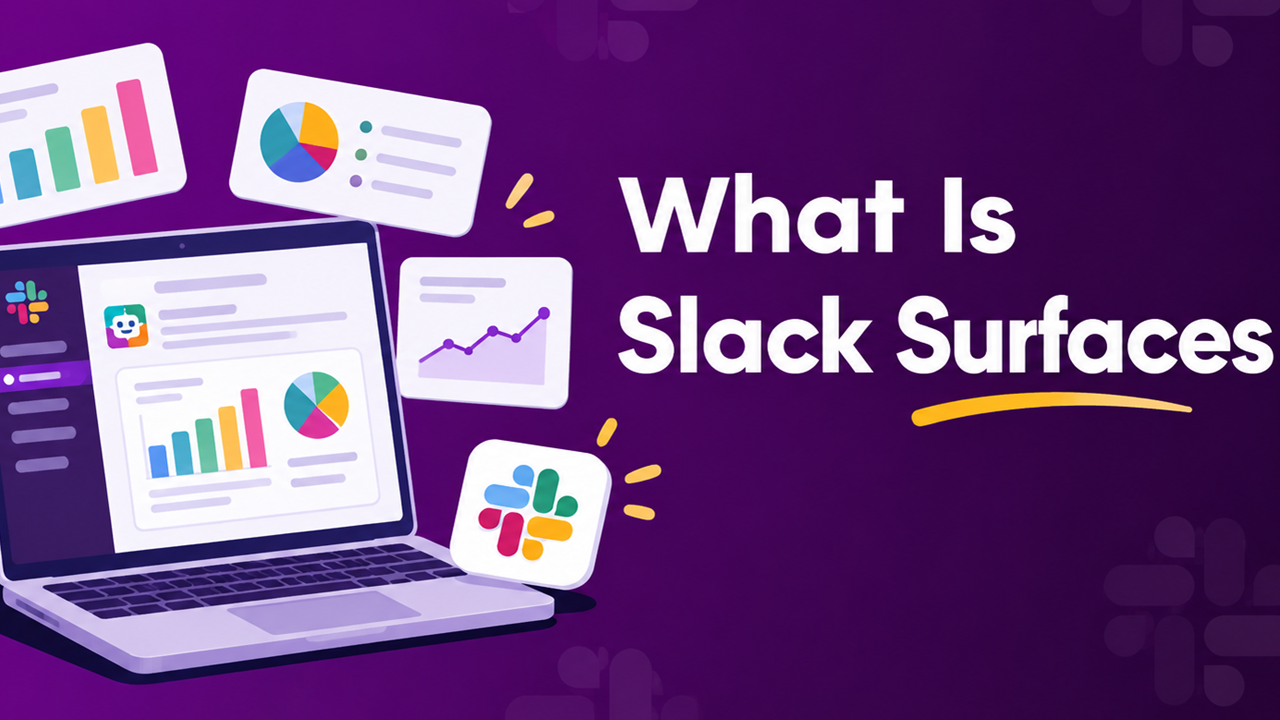

Slack is a team communication app that organizes work and conversations in one place.
Slack Surfaces is a feature built into Slackbot that turns plain-language requests into interactive reports, dashboards, and data visualizations right inside your chat window. Instead of exporting data to a third-party tool, you describe what you need, and Slackbot pulls information from your workspace and connected apps to build a shareable, commentable surface.
Salesforce introduced Surfaces as part of a broader push to make Slack the central hub for AI-assisted work. The feature began rolling out in mid-2026 and is available across plans, including free tiers.
What Is Slack Surfaces?
A surface is a new type of file in Slack. When you ask Slackbot something like "build me a dashboard of my sales pipeline by deal stage," Slackbot collects relevant data from your Slack conversations and any connected sources, then generates a visual report you can interact with.
Think of it as a mini dashboard that lives where the conversation is already happening. You don't switch tabs or open a separate analytics platform. The report appears in the chat, and your team can comment on it directly.
Slack's parent company, Salesforce, has been positioning Slack as more than a messaging app. Surfaces represent a step toward making it a place where work actually gets done, not just discussed.
How Slack Surfaces Works
The process is straightforward. You open Slackbot on desktop, type a description of what you want, and Slackbot handles the rest.
Here's what happens behind the scenes:
- You send a prompt. Something like "I need an interactive report showing Q2 customer support ticket volume broken down by week."
- Slackbot searches connected sources. It looks through your Slack workspace for relevant messages and files, and it also queries any apps you've connected via MCP (Model Context Protocol) servers or enterprise search. That could include Salesforce records, Jira tickets, Linear issues, or Google Drive documents.
- Slackbot builds the surface. It compiles the data into an interactive visual report with charts, tables, and text.
- You review and share. If the result looks good, you share it to a channel or pin it as a tab. If something's off, you send a follow-up message to refine it.
The surface also includes an AI-generated section with additional insights, key themes, trends, and recommended action items tailored to the content.
Key Features of Slack Surfaces
Surfaces come with several capabilities that set them apart from static reports:
- Interactive elements. You can sort, filter, and explore the data within the surface itself. It's not a screenshot or a PDF.
- Collaborative commenting. Anyone who can view a surface can add comments. This turns a report into a discussion thread rather than a dead-end document.
- Shareable anywhere in Slack. You can post a surface in a channel, send it in a direct message, or add it as a tab in any conversation so people can find it later.
- AI-generated insights. Alongside the data, each surface includes a section with trends, themes, and suggested next steps based on what Slackbot found.
- Connected data sources. If your team uses Salesforce, Jira, Linear, or other tools that support MCP, Slackbot can pull from those sources automatically.
Slack Surfaces Use Cases
The flexibility of surfaces means they work across different roles and workflows:
- For sales teams: Connect Slack to Salesforce, then ask Slackbot to build a pipeline dashboard grouped by deal stage. The surface shows your top opportunities in a sortable list, and you can share it in your sales channel for everyone to review.
- For project managers: Connect Jira or Linear, then ask Slackbot to group all issues for a specific project by priority or assignee. The surface becomes a live project board that anyone in the channel can reference.
- For customer support: Ask Slackbot to create a report showing ticket volume over time, broken down by category or urgency. The AI insights section can highlight recurring issues or trends worth addressing.
- For leadership: Request a weekly summary surface that pulls highlights from multiple channels and connected sources. Share it in a leadership channel so everyone stays aligned without reading through every conversation.
Slack Surfaces Availability and Pricing
Surfaces are available to all Slack customers, including those on the free plan. There are no additional fees or add-ons required to use the feature.
Surfaces rely on Slackbot's AI capabilities, and some connected data sources may require separate integrations or enterprise search configuration. If your workspace admin has restricted certain AI features, you may need to ask them to enable access.
Surfaces are a new file type in Slack, and they follow your workspace's file retention settings. You can find them alongside your other files, and you can search for them by title.
Slack Surfaces vs. Traditional Reporting Tools
Most teams generate reports by pulling data from one tool, pasting it into a spreadsheet or slide deck, and sharing the final product in a chat. That process involves multiple steps and often produces something static.
Surfaces collapse those steps. The report is generated where the conversation is already happening, and it's interactive rather than fixed. People can comment on it, and the surface retains a link back to the underlying data sources.
One limitation: surfaces are currently static files. They don't automatically refresh or pull in new data after creation. If you need the latest numbers, you create a new surface using the same prompt. Slack has indicated that automatic updates may come in future releases, but as of now, you'll need to regenerate surfaces to reflect changes.
For teams that already use Slack as their primary communication tool, surfaces eliminate the need to context-switch between reporting tools and chat. For teams that rely heavily on dedicated BI platforms like Tableau or Looker, surfaces won't replace those tools but can complement them for quick, ad-hoc reporting.
Getting Started With Slack Surfaces
To create your first surface:
- Click the Slackbot icon at the top of your desktop app.
- Type a request describing what you want to see. Be specific about the data sources, time range, and grouping you need.
- Review what Slackbot generates. If it's close but not quite right, send a follow-up message with adjustments.
- Click the three dots in the top-right corner of the surface to copy the link.
- Share it in a channel or add it as a tab so your team can find it.
Slack also released related Slackbot features alongside Surfaces. You can ask Slackbot to create slide decks in Google Slides or PowerPoint, execute code in a secure sandbox for data analysis, and generate custom images. Together, these tools turn Slackbot into a versatile assistant for generating content without leaving your workflow.
If your team has been exploring what people call "vibe coding" (building things by describing them in natural language rather than writing code), Surfaces fit right into that pattern. You describe the report you want, and the AI handles the construction.
Slack is a team communication app that organizes work and conversations in one place.
 NEWS
NEWS REVIEWS
 HOWTO
HOWTO